Run Claude Code and Codex 24/7 on a VPS (Laptop Off)
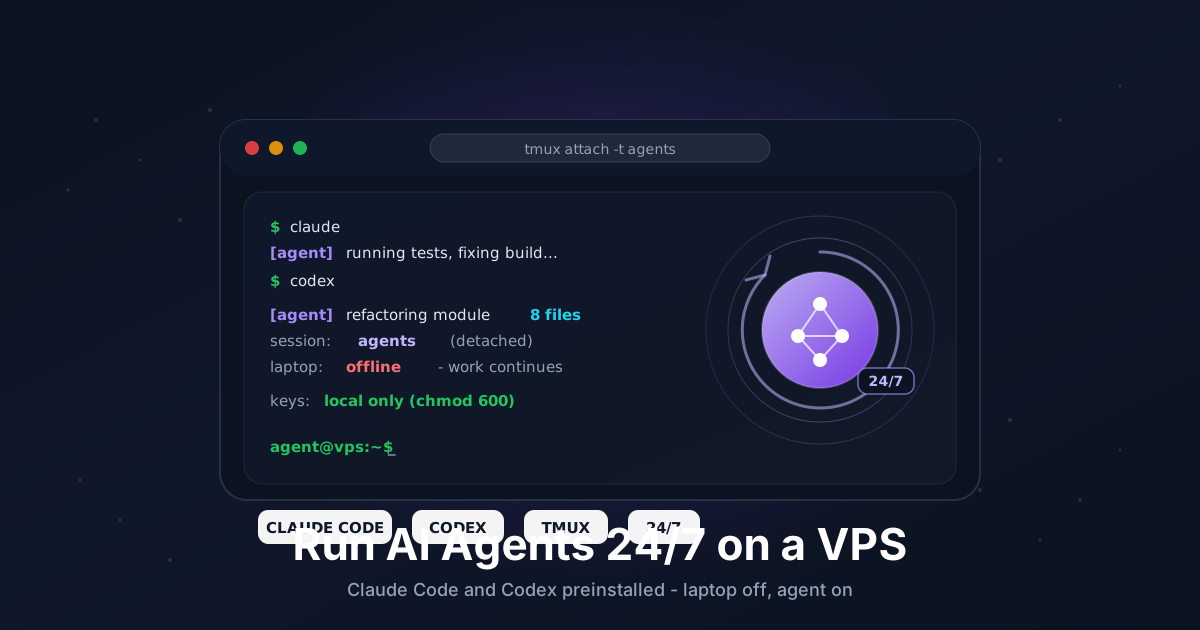
AI coding agents are great until you close your laptop. A long refactor, a test loop, an overnight research task - the moment your machine sleeps, the session dies and you come back to a half-finished job. The fix is the same one sysadmins have used for decades: run the work on a server that never sleeps. Put Claude Code and Codex on a small VPS, start them inside a persistent terminal session, disconnect, and the agent keeps going. Laptop off, agent on.
You do not need a GPU for this. Claude Code (@anthropic-ai/claude-code) and Codex (@openai/codex) are API-driven - the heavy model inference happens on Anthropic's and OpenAI's servers, not yours. Your VPS just runs the CLI, holds your repo, runs your tests, and talks to the API. That means a modest CPU and RAM box is plenty, which keeps it cheap.
To make this painless, our AI Agent plans ship an Ubuntu 24.04 image with both CLIs already installed, plus Node.js, Python with uv, Docker, tmux, headless Chromium, and mosh. The first time you log in, a short interactive setup helps you drop in your API keys - and those keys never leave your box. This guide walks through the whole flow, from first SSH login to an agent that survives reboots.
TL;DR
- Pick an AI Agent plan - they are tagged as AI Agent plans and come with Claude Code and Codex preinstalled on Ubuntu 24.04
- No GPU needed: these are API-driven agents, so a CPU/RAM box is enough and stays cheap
- On first SSH login,
rdpsh-agent-setupruns and asks you to paste your Anthropic API key (and optionally an OpenAI key for Codex) - Keys are written only to your box (
~/.config/rdpsh/env,chmod 600) and are never sent to rdp.sh - Setup offers to start a persistent tmux session named
agents- detach withCtrl-b d, reattach later withtmux attach -t agents - Run
claudeorcodexinside that session, disconnect, and the work keeps running with your laptop closed - Prefer the browser? Every AI offer has an in-browser terminal in the dashboard - no SSH client required
- Docker, Python+uv, and headless Chromium are preinstalled so agents can build, test, and browse
Total time to first running agent: about 10 minutes.
What You Need
- An AI Agent plan from rdp.sh (Ubuntu 24.04, both CLIs preinstalled)
- An Anthropic API key for Claude Code - create one at console.anthropic.com under API Keys
- Optional: an OpenAI API key for Codex - create one at platform.openai.com under API keys
- An SSH client (built into macOS, Linux, and modern Windows) - or just use the in-browser terminal in the dashboard
- Optional but recommended: mosh installed locally if you want resilient connections over flaky WiFi or cellular
You do not need to install Node, Python, Docker, or the agent CLIs yourself. They are baked into the image. If you are starting from a plain VPS instead, you would install them manually - but the AI Agent plans skip all of that.
Step 1: Connect to Your Box
After your AI Agent plan is provisioned, you connect like any other VPS. Grab the IP and the user from your dashboard, then:
ssh agent@YOUR_SERVER_IP
If you would rather not touch a terminal on your own machine at all, open the server in the rdp.sh dashboard and click the in-browser terminal. Every AI offer has one - it drops you straight into a shell on the box, no SSH client or key setup needed. Everything in this guide works the same there.
Step 2: First-Login Setup and API Keys
On your first login, rdpsh-agent-setup runs automatically. It walks you through a few prompts:
rdp.sh AI Agent setup
---------------------
1) Paste your Anthropic API key (for Claude Code): sk-ant-...
2) Paste your OpenAI API key (for Codex) [optional, press Enter to skip]: sk-...
3) Start a persistent tmux session named "agents"? [Y/n]:
Paste your Anthropic key at the first prompt. If you also want Codex, paste your OpenAI key at the second; otherwise just press Enter to skip it - you can add it later by re-running the script.
Here is the important part: your keys are written only to your own server, never to rdp.sh. The script saves them to a private env file owned by your user and locked down to chmod 600 so no other account can read them:
cat ~/.config/rdpsh/env
ANTHROPIC_API_KEY=sk-ant-...
OPENAI_API_KEY=sk-...
ls -l ~/.config/rdpsh/env
# -rw------- 1 agent agent  92 Jun 17 10:14 /home/agent/.config/rdpsh/env
Your shell profile sources that file on login, so ANTHROPIC_API_KEY and OPENAI_API_KEY are available to both CLIs in every new shell. rdp.sh never sees these values - they live on your box and only travel to Anthropic and OpenAI when the agents call their APIs.
If you ever need to run the setup again (to change a key, add Codex, or recreate the tmux session):
rdpsh-agent-setup
Step 3: Start a Persistent Session That Survives Disconnects
This is the whole point. A normal SSH session ends when you disconnect, and any program running in it dies with it. tmux solves that by keeping a session alive on the server independent of your connection. The setup script offers to create one called agents for you; if you accepted, it is already running.
To attach to it (or check it exists):
tmux attach -t agents
If it does not exist yet, create it:
tmux new -s agents
Now run your agent inside that session (next step). When you want to leave without stopping anything, detach instead of closing the window:
- Press
Ctrl-b, release, then pressd
You are back at your normal shell, and you can safely close the SSH connection or shut your laptop. The agents session and everything in it keeps running on the server. To pick up where you left off from any machine - your laptop later, your phone, the in-browser terminal:
tmux attach -t agents
That is the "laptop off, agent on" promise: the work lives on the server, not in your local connection.
Step 4: Run Claude Code
Inside the agents tmux session, change into a project directory and launch Claude Code:
mkdir -p ~/projects/demo && cd ~/projects/demo
claude
The first run may ask you to confirm the working directory and trust the folder. Because your ANTHROPIC_API_KEY is already exported from the setup file, you should not be prompted to authenticate again. Give it a task in plain language:
> Set up a small Python project with uv, add a failing test, then make it pass.
Claude Code will create files, run commands, and iterate. Since Python and uv are preinstalled, it can scaffold and run the project immediately. When you want to step away, detach the tmux session (Ctrl-b d) and the run continues.
To clone an existing repo and point the agent at it:
cd ~/projects
git clone https://github.com/your-org/your-repo.git
cd your-repo
claude
Step 5: Run Codex
Codex works the same way and uses the OPENAI_API_KEY from your setup file. In a tmux window (open a new one with Ctrl-b c), start it in a project directory:
cd ~/projects/your-repo
codex
Give it a task and let it run. Running Claude Code in one tmux window and Codex in another is a common setup - cycle between windows with Ctrl-b n (next) and Ctrl-b p (previous), or Ctrl-b then a number. Both keep running while you are detached.
If you skipped the OpenAI key during setup and try to run codex, it will complain about a missing key. Re-run rdpsh-agent-setup to add it, then open a fresh shell (or source ~/.bashrc) so the new key is loaded.
Step 6: Docker Sanity Check
Agents often want to build and run things in containers. Docker is preinstalled, so confirm it works before you hand an agent a containerized task:
docker run --rm hello-world
You should see the standard "Hello from Docker!" message. A slightly more real check that proves networking and image pulls work:
docker run --rm alpine sh -c 'echo container ok && cat /etc/os-release | head -1'
If your user is set up in the docker group (it is on the AI Agent image), you do not need sudo. Now an agent can confidently run things like docker build, spin up a database container for tests, or run a service in the background.
Step 7: Headless Chromium for Agent Browsing Tasks
Some agent tasks need a real browser - scraping a page, taking a screenshot, checking that a web app renders, or driving a login flow. Headless Chromium is preinstalled for exactly this. Confirm it is there and working:
chromium --headless --no-sandbox --dump-dom https://example.com | head -5
To grab a screenshot the agent (or you) can inspect:
chromium --headless --no-sandbox --screenshot=/tmp/shot.png --window-size=1280,800 https://example.com
ls -l /tmp/shot.png
The --no-sandbox flag is the usual requirement when running Chromium as a non-root user inside a server or container; it is fine here because the box is already isolated. Agent frameworks that drive a browser (Playwright, Puppeteer, or the CLIs' own browsing tools) can point at this Chromium binary, so research-and-browse tasks work out of the box.
Step 8: Keep Long Tasks Alive Over Bad Connections
tmux protects the work on the server side. mosh protects your connection on the client side. If you connect over WiFi that drops, switch from cellular to home network, or just close the lid and reopen later, plain SSH freezes or dies. mosh reconnects automatically and keeps the same session.
mosh is preinstalled on the server. Install it locally (Homebrew, apt, etc.), then connect with:
mosh agent@YOUR_SERVER_IP
Once in, attach your tmux session as usual:
tmux attach -t agents
Now you have two layers of resilience: mosh survives network changes on your side, and tmux survives full disconnects on the server side. Between them, your agent runs uninterrupted whether your laptop is awake, asleep, or off.
Troubleshooting
claude or codex says the API key is missing. The env file probably is not loaded in your current shell. Run source ~/.bashrc to reload it, or open a fresh shell. If the key was never set (or you want to change it), re-run rdpsh-agent-setup. Confirm the value is present with echo ${ANTHROPIC_API_KEY:0:7} - you should see sk-ant-.
I disconnected and think I lost my session. You almost certainly did not. The agents session is still running on the server. Reconnect and run tmux attach -t agents. List all sessions with tmux ls if you are not sure of the name.
mosh connects but my agent is gone. mosh gives you a fresh shell, not your old tmux session. That is expected - your work is in tmux, not in the mosh shell. Run tmux attach -t agents after connecting.
docker run fails with a permission error. Your shell may predate your group membership. Log out and back in, or run newgrp docker, then retry. On the AI Agent image your user is already in the docker group, so a fresh login is usually all it takes.
Chromium errors about a sandbox or missing display. Always pass --headless and --no-sandbox on a server with no GUI. If a page hangs, add --disable-gpu and a timeout in your script. For agent frameworks, point them at the system chromium binary rather than downloading their own.
Going Further
- Lock down access with Tailscale. Instead of exposing SSH to the whole internet, put the box on a private tailnet and reach it over WireGuard. Our Tailscale guide walks through it - then you can
moshandtmux attachover the tailnet from anywhere. - Give each project its own tmux window. Use
Ctrl-b cto open windows andCtrl-b ,to rename them, so a glance tells you which agent is doing what. Long-lived sessions like this are perfect for overnight jobs. - Schedule recurring agent runs. Pair a cron job or a systemd timer with a script that sends a task to an agent, so routine work (dependency bumps, nightly test runs, summaries) happens without you touching the box.
- Run a containerized sandbox. Since Docker is preinstalled, give the agent a throwaway container as its workspace for risky tasks, then discard it. This keeps experiments off your main filesystem.
Closing your laptop should not kill your work. With the CLIs preinstalled, your keys staying on your own box, and a persistent tmux session doing the heavy lifting, your AI coding agents become long-running workers instead of fragile local processes. Start a task, walk away, and check back when it is done.
Want Claude Code and Codex ready to go in minutes? Our AI Agent plans ship Ubuntu 24.04 with both CLIs, Docker, headless Chromium, and tmux preinstalled - plus an in-browser terminal so you can start an agent without leaving the dashboard. See the options.