Harden SSH on a VPS with Fail2Ban and Key-Only Auth
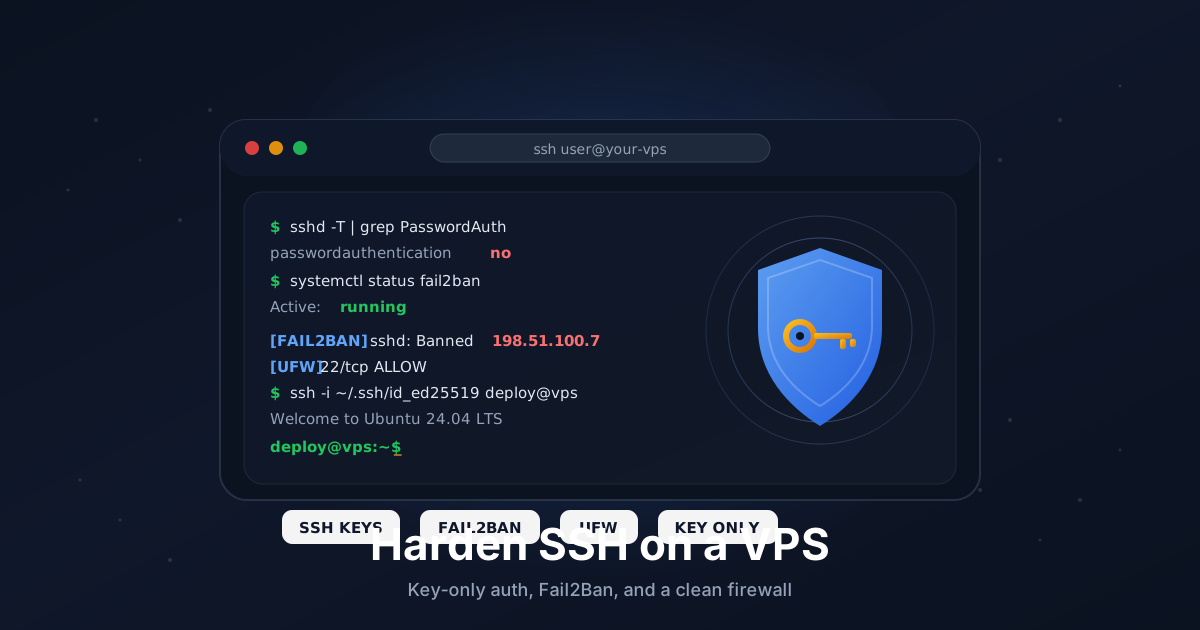
SSH is the front door of any Linux VPS. If that door is wide open with password auth and a default root login, every bot on the internet will eventually try the handle. Hardening SSH takes about twenty minutes and turns a noisy attack surface into a quiet one.
This walkthrough is written for Ubuntu 22.04 and 24.04, but the same ideas apply to Debian, Alma, Rocky, and the rest of the Linux family. We will set up key-only authentication, lock down the SSH daemon, install Fail2Ban, configure UFW, and (optionally) layer on TOTP 2FA.
TL;DR
- Create a non-root sudo user and copy your public key to it
- Generate an ed25519 key on your laptop, not on the server
- Set
PasswordAuthentication no,PermitRootLogin no,PubkeyAuthentication yes - Restrict logins with
AllowUsers yourname - Install Fail2Ban with the
sshdjail enabled - Turn on UFW and allow only the SSH port (and whatever else you need)
- Optional: add
google-authenticatorfor TOTP 2FA on top of keys
Total time: about 20-30 minutes.
What You Need
- A VPS running Ubuntu 22.04 or 24.04 with current updates
- Root access for the initial setup (provider root password or initial SSH key)
- A local machine with
ssh,ssh-keygen, andssh-copy-id(any modern Linux, macOS, or Windows with OpenSSH) - Access to your VPS provider's web console (the rescue screen) in case you lock yourself out
If you do not have a VPS yet, any small Linux plan works. SSH and Fail2Ban together use a few megabytes of RAM.
Step 1: Update the System
Always start clean:
sudo apt update
sudo apt full-upgrade -y
sudo apt autoremove -y
Reboot if the kernel was upgraded:
sudo reboot
Step 2: Create a Non-Root Sudo User
Logging in as root over the internet is a habit worth dropping. Create a regular user with sudo rights and use that for everything.
sudo adduser deploy
sudo usermod -aG sudo deploy
Pick any name you want - deploy, ubuntu, your first name, anything that is not root or admin. Set a strong password when prompted, even though you will not use it for SSH (sudo still asks for it).
Verify the new user can use sudo:
su - deploy
sudo whoami
You should see root. Type exit to return to your previous shell.
Step 3: Generate an ed25519 Key on Your Laptop
Generate the key on your local machine, not on the server. The private key should never leave your laptop.
ssh-keygen -t ed25519 -C "you@your-laptop"
Why ed25519? It is the modern default: small, fast, and resistant to common cryptographic mistakes that older RSA setups can fall into. If you need RSA for an ancient system, use at least -b 4096, but for a current VPS, ed25519 is the right pick.
Press Enter to accept the default file location (~/.ssh/id_ed25519). Use a strong passphrase - it protects the key if your laptop is ever stolen.
Confirm the public key exists:
cat ~/.ssh/id_ed25519.pub
That single line beginning with ssh-ed25519 is what goes on the server.
Step 4: Copy the Public Key to the Server
The easy way:
ssh-copy-id deploy@YOUR_VPS_IP
It will ask for the password you set for deploy and append the key to /home/deploy/.ssh/authorized_keys.
If ssh-copy-id is unavailable, do it manually:
ssh deploy@YOUR_VPS_IP "mkdir -p ~/.ssh && chmod 700 ~/.ssh"
cat ~/.ssh/id_ed25519.pub | ssh deploy@YOUR_VPS_IP "cat >> ~/.ssh/authorized_keys && chmod 600 ~/.ssh/authorized_keys"
The 700 and 600 permissions matter. SSH will refuse to use a key file that is too permissive.
Step 5: Test the Key Before You Change Anything
This is the single most important step in the entire post.
Open a new terminal window. Leave your current sudo session running. In the new window, connect with the key:
ssh deploy@YOUR_VPS_IP
If this works without asking for a password (it might ask for the key passphrase), you are good. If it asks for the server password, your key is not in place yet. Stop and fix that before continuing.
Step 6: Harden sshd_config
Open the SSH daemon config:
sudo nano /etc/ssh/sshd_config
Find or add the following directives. On Ubuntu 24.04, some live in /etc/ssh/sshd_config.d/ drop-in files - for clarity, this guide puts everything in the main file.
# Authentication
PermitRootLogin no
PasswordAuthentication no
PubkeyAuthentication yes
KbdInteractiveAuthentication no
ChallengeResponseAuthentication no
UsePAM yes

# Restrict who can SSH in
AllowUsers deploy

# Reduce session noise
LoginGraceTime 30
MaxAuthTries 3
MaxSessions 5

# Protocol hygiene
X11Forwarding no
PermitEmptyPasswords no
ClientAliveInterval 300
ClientAliveCountMax 2
A few notes:
AllowUsers deploymeans onlydeploycan log in over SSH, even if you accidentally create another account later.KbdInteractiveAuthentication nodisables the older keyboard-interactive flow. Skip this line if you plan to use 2FA in Step 11.UsePAM yesis required if you want Fail2Ban or 2FA to work cleanly.
On Ubuntu 24.04, also make sure no drop-in file in /etc/ssh/sshd_config.d/ is overriding you. Quick check:
sudo grep -R "PasswordAuthentication\|PermitRootLogin" /etc/ssh/sshd_config.d/
If you see conflicting values, edit those files too or remove them.
Validate the config before restarting:
sudo sshd -t
If there are no errors, reload SSH:
sudo systemctl reload ssh
Now open a third terminal and try to connect again as deploy. Confirm it still works. Then try connecting as root - it should fail with Permission denied.
Step 7: (Optional) Change the SSH Port
Changing the port is not real security, but it cuts the noise of automated scans by a huge margin. Pick a high port between 1024 and 65535 - for example, 52022.
In /etc/ssh/sshd_config:
Port 52022
If the system uses systemd socket activation (Ubuntu 22.10+), you need to update the socket too:
sudo systemctl edit ssh.socket
Add:
[Socket]
ListenStream=
ListenStream=52022
Then reload:
sudo systemctl daemon-reload
sudo systemctl restart ssh.socket
sudo systemctl restart ssh
Test the new port from your laptop:
ssh -p 52022 deploy@YOUR_VPS_IP
Trade-offs to be aware of:
- Some corporate networks only allow outbound
22,80,443. A non-standard port can be unreachable from those networks. - Tools that assume port 22 (
scp,rsync, IDE deploy plugins) need the port specified each time. A~/.ssh/configentry helps:
Host my-vps
    HostName YOUR_VPS_IP
    User deploy
    Port 52022
    IdentityFile ~/.ssh/id_ed25519
After that, just ssh my-vps and scp file my-vps:/tmp/ work as expected.
Step 8: Install and Configure UFW
UFW is Ubuntu's friendly wrapper around iptables/nftables.
sudo apt install -y ufw
Set the defaults (deny incoming, allow outgoing) and allow your SSH port. Do this in one go before enabling, otherwise enabling UFW can boot you out.
sudo ufw default deny incoming
sudo ufw default allow outgoing
sudo ufw allow 52022/tcp comment 'SSH'
If you kept SSH on port 22, use sudo ufw allow OpenSSH instead.
Add anything else you need (a web server, for example):
sudo ufw allow 80/tcp
sudo ufw allow 443/tcp
Now enable:
sudo ufw enable
sudo ufw status verbose
You should see your rules listed and Status: active. Test SSH from your laptop again to be sure.
Step 9: Install Fail2Ban
Fail2Ban watches log files and bans IPs that fail authentication too many times. The default install is great for SSH.
sudo apt install -y fail2ban
Create a local override (never edit jail.conf directly - it gets overwritten by package updates):
sudo nano /etc/fail2ban/jail.local
Paste:
[DEFAULT]
bantime  = 1h
findtime = 10m
maxretry = 5
backend  = systemd
ignoreip = 127.0.0.1/8 ::1

[sshd]
enabled = true
port    = 52022
mode    = aggressive
If you kept SSH on port 22, set port = ssh. The aggressive mode catches a wider set of probing patterns on top of straight password failures.
Add your home or office static IP to ignoreip if you have one - it removes the chance of banning yourself.
Start the service:
sudo systemctl enable --now fail2ban
sudo systemctl status fail2ban
Check the SSH jail:
sudo fail2ban-client status sshd
You will see counters for currently failed and banned IPs. After a day on the public internet, the banned list usually has dozens of entries.
Step 10: Verify Everything
A quick sanity check before you walk away:
# Should refuse passwords entirely
ssh -o PreferredAuthentications=password -o PubkeyAuthentication=no \
    -p 52022 deploy@YOUR_VPS_IP

# Should refuse root
ssh -p 52022 root@YOUR_VPS_IP

# Should succeed
ssh -p 52022 deploy@YOUR_VPS_IP

# Effective sshd config + firewall + jails
sudo sshd -T | grep -E 'passwordauthentication|permitrootlogin|pubkeyauthentication'
sudo ufw status
sudo fail2ban-client status
If all four checks behave the way you expect, the box is hardened.
Step 11: (Optional) Add TOTP 2FA
If you want a second factor on top of your key, use the google-authenticator PAM module. This pairs an ed25519 key with a six-digit code from an app like Aegis, 1Password, or Google Authenticator.
Install:
sudo apt install -y libpam-google-authenticator
Run the setup as the user that will be logging in:
google-authenticator
Answer:
- Time-based tokens? yes
- Update
~/.google_authenticator? yes - Disallow multiple uses? yes
- Increase window? no
- Rate limiting? yes
Save the emergency scratch codes in your password manager.
Wire it into PAM. Edit /etc/pam.d/sshd and add at the top:
auth required pam_google_authenticator.so nullok
The nullok means users without a 2FA file can still log in - useful while you roll this out. Remove it once everyone is enrolled.
Then in /etc/ssh/sshd_config:
KbdInteractiveAuthentication yes
AuthenticationMethods publickey,keyboard-interactive
This forces both a key and a TOTP code. Reload SSH:
sudo systemctl reload ssh
Test from a fresh terminal. You should be asked for your verification code right after the key is accepted.
Troubleshooting
Permission denied (publickey). Check permissions on the server: chmod 700 ~/.ssh, chmod 600 ~/.ssh/authorized_keys. SSH refuses to use overly permissive files. Check /var/log/auth.log for the exact reason.
Agent has no identities. Run ssh-add ~/.ssh/id_ed25519 on your laptop. On macOS, ssh-add --apple-use-keychain ~/.ssh/id_ed25519 makes it persistent across reboots.
Banned myself in Fail2Ban. From the VPS console (or another machine), run sudo fail2ban-client set sshd unbanip YOUR_IP. Then add your IP to ignoreip in /etc/fail2ban/jail.local and reload Fail2Ban.
Connection refused on a new port. UFW or the provider firewall is blocking it. Run sudo ufw status and check your provider's network firewall dashboard.
sshd -t reports "Bad configuration option". A directive name is misspelled or your Ubuntu version doesn't recognize it. Comment that line and reload.
Recover If You Lock Yourself Out
It happens. Here is the safe path:
- Log into your VPS provider's control panel.
- Open the VNC, web console, or rescue console for the server. Most providers (Hetzner, OVH, DigitalOcean, Vultr, Linode) offer this.
- Log in as
rootor your sudo user using the provider password. - Fix whatever is broken:
# Re-enable a working state temporarily
sudo nano /etc/ssh/sshd_config
# Set PasswordAuthentication yes, comment out AllowUsers, etc.
sudo sshd -t
sudo systemctl restart ssh

# Or unban yourself
sudo fail2ban-client set sshd unbanip YOUR_IP

# Or open SSH in UFW
sudo ufw allow 52022/tcp
This is why the very first thing this guide tells you to do is open a second SSH session - the console is your last-resort backup, but a second session is far quicker.
Going Further
- Switch to SSH certificates. Once you have more than a couple of users or servers, individual
authorized_keysentries don't scale. SSH certificate authorities let you sign short-lived user certs against a single trusted CA. - Run
ssh-auditagainst your server. It is a free tool that flags weak ciphers, MACs, and host keys:pip install ssh-audit && ssh-audit YOUR_VPS_IP. - Put SSH behind a VPN. The single biggest win is making SSH unreachable from the public internet at all. Our Tailscale guide walks through scoping SSH to your tailnet so port
22(or52022) is firewalled off entirely. - Add an OS-level audit trail.
auditdplusjournalctlgive you a forensic record of who did what after they logged in. Useful if you ever need to answer the "what changed?" question.
The combination of ed25519 keys, no passwords, no root, Fail2Ban, and UFW is what most well-run boxes look like. It is not exotic, and it is not expensive. It just takes the time to do.
Setting up a fresh server to apply this on? Our Linux VPS plans come with current Ubuntu images, fast NVMe storage, and a web console for the inevitable "I locked myself out" moment.