Self-Host RustDesk Server on a VPS for Private Remote Desktop
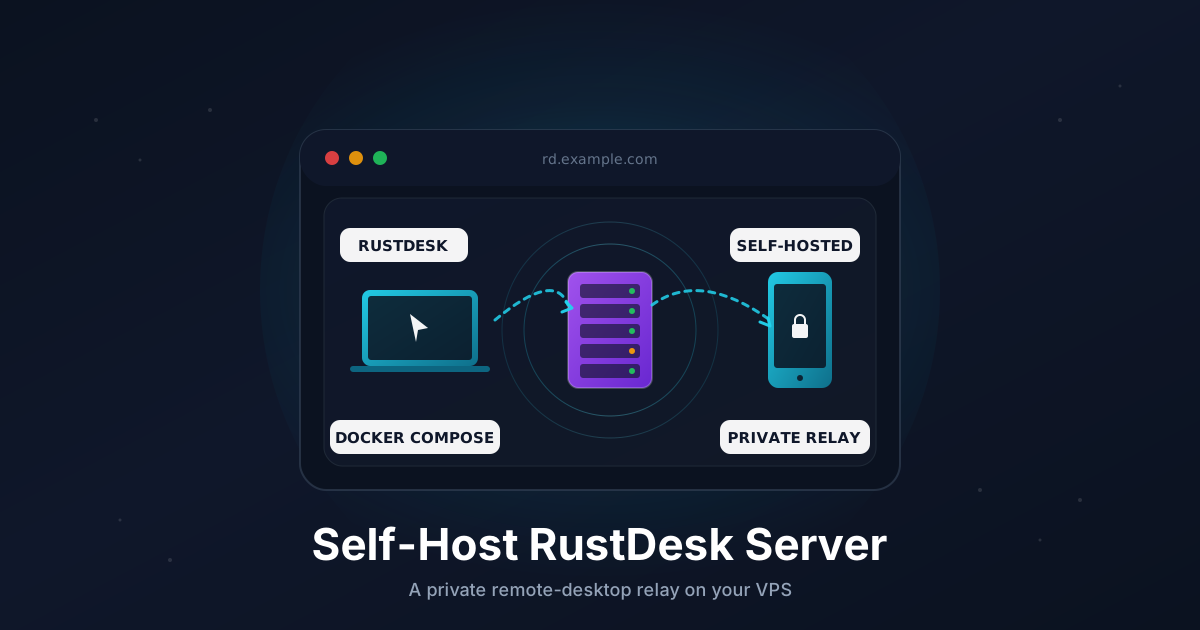
RustDesk is an open-source remote desktop client that works like TeamViewer or AnyDesk - except the server side is open source, you can host it yourself, and there is no per-seat pricing. The official public relay is fine for casual use, but for anything serious (support work, family helpdesk, or a small team) running your own server gives you faster connections, no session limits, and full control over who can connect.
This tutorial walks through a production-ready install on a VPS: Docker Compose, the open-source hbbs (rendezvous) and hbbr (relay) services, firewall rules, and the client-side configuration to point every device at your own server.
TL;DR
- Spin up a small Linux VPS with a public IP
- Install Docker and Docker Compose
- Run
hbbs(signaling) andhbbr(relay) with a single compose file - Open the right TCP and UDP ports
- Point your RustDesk clients at your server and pin the public key
- Optionally restrict access to a VPN
Total time: about 10 minutes.
How RustDesk Actually Connects
Two small services do the work:
- hbbs - the ID and rendezvous server. Clients register their ID here and discover each other. UDP
21116plus TCP21115,21116,21118. - hbbr - the relay. When clients can't NAT-punch directly, traffic flows through the relay. TCP
21117and21119.
When you launch a session, the client first asks hbbs where the peer is. If both peers can hole-punch, they connect directly and the relay is never used. If they can't (typical with strict carrier NATs), traffic falls back to hbbr.
For a low-latency relay you want a VPS close to where your clients live. Anything between the two endpoints works, but a server in your own region usually beats the public free relay by a wide margin.
What You Need
- A VPS with at least 1 GB RAM and a public IPv4 address running Ubuntu 22.04 or 24.04
- Root or sudo access
- Optional: a domain or subdomain like
rd.example.compointed at the VPS (nicer than typing IPs into clients)
A 1-vCPU box is plenty. The relay is mostly bandwidth-bound, not CPU-bound.
Step 1: Point a Subdomain at the VPS (Optional)
If you have a domain handy, this makes life easier when typing the server address into clients.
In your DNS provider, add an A record:
rd.example.com → YOUR_VPS_IPV4
Verify:
dig +short rd.example.com
The IP should match. Skip this step if you'd rather just use the raw IP.
Step 2: Install Docker and Docker Compose
On a fresh Ubuntu server:
sudo apt update
sudo apt install -y ca-certificates curl

sudo install -m 0755 -d /etc/apt/keyrings
sudo curl -fsSL https://download.docker.com/linux/ubuntu/gpg \
  -o /etc/apt/keyrings/docker.asc
sudo chmod a+r /etc/apt/keyrings/docker.asc

echo "deb [arch=$(dpkg --print-architecture) signed-by=/etc/apt/keyrings/docker.asc] \
  https://download.docker.com/linux/ubuntu $(. /etc/os-release && echo $VERSION_CODENAME) stable" | \
  sudo tee /etc/apt/sources.list.d/docker.list > /dev/null

sudo apt update
sudo apt install -y docker-ce docker-ce-cli containerd.io docker-buildx-plugin docker-compose-plugin
Confirm it's working:
docker --version
docker compose version
Step 3: Open the Firewall
RustDesk needs five ports open. Some are TCP, one is both TCP and UDP.
sudo ufw allow 22/tcp
sudo ufw allow 21115/tcp
sudo ufw allow 21116/tcp
sudo ufw allow 21116/udp
sudo ufw allow 21117/tcp
sudo ufw allow 21118/tcp
sudo ufw allow 21119/tcp
sudo ufw enable
If you use a provider firewall or security group, mirror the same rules there. Missing the UDP rule on 21116 is the single most common cause of "client connects but never relays" later.
Step 4: Create the Project Directory
sudo mkdir -p /opt/rustdesk
cd /opt/rustdesk
sudo mkdir -p data
The data directory holds the public/private key pair that identifies your server. Back this up.
Step 5: Write the Compose File
Create /opt/rustdesk/docker-compose.yml:
services:
  hbbs:
    image: rustdesk/rustdesk-server:latest
    container_name: hbbs
    command: hbbs
    network_mode: host
    volumes:
      - ./data:/root
    restart: unless-stopped
    depends_on:
      - hbbr

  hbbr:
    image: rustdesk/rustdesk-server:latest
    container_name: hbbr
    command: hbbr
    network_mode: host
    volumes:
      - ./data:/root
    restart: unless-stopped
A few notes:
network_mode: hostis the simplest setup. Without it you have to publish each port and the relay's NAT detection gets confused.- Both services share the same
datavolume so they read the same key pair. - The
latesttag pins to the OSS server. Switch to a specific version tag if you want reproducible upgrades.
Step 6: Start the Stack
cd /opt/rustdesk
sudo docker compose up -d
sudo docker compose logs -f
On first launch, hbbs generates a key pair under ./data. You should see something like:
hbbs  | Key: <BASE64_PUBLIC_KEY>
hbbs  | Listening on tcp/udp :21116, tcp :21115/21118
hbbr  | Listening on tcp :21117/21119
Copy the Key: value. You'll paste it into every client in the next step. You can also read it later from:
sudo cat /opt/rustdesk/data/id_ed25519.pub
Step 7: Configure the RustDesk Client
In every RustDesk app (desktop, mobile), open Settings and then Network (or ID/Relay Server on older versions) and fill in:
- ID Server:
rd.example.com(or your VPS IP) - Relay Server: leave blank if it's the same host as the ID server, or set it explicitly to
rd.example.com - API Server: leave blank (OSS edition)
- Key: paste the
id_ed25519.pubvalue from Step 6
Save. The status bar at the bottom of the main RustDesk window should switch from Ready over the public relay to Ready with a green badge showing your server name. The connection ID will also change.
If you're rolling this out to non-technical users, the easier path is a custom client build with the server pre-configured. RustDesk's build customization docs walk through it. For up to a handful of clients, manual config is fine.
Step 8: Test a Connection
On two devices that both point at your server:
- Open RustDesk on the host you want to control
- Note its 9-digit ID
- On the second device, type the ID into the
Control Remote Desktopbox and hitConnect - Approve the prompt on the host
Watch the relay logs while you connect:
sudo docker compose logs hbbr --tail 50
If you see relay handshake from <IP> traffic is flowing through your relay. If you see no relay activity, the peers connected directly - that's actually the better case, since direct is faster than relayed.
Step 9: Lock Down the Server (Optional but Recommended)
By default, anyone who knows your server address and public key can register an ID with it. For a personal or small-team relay, that's usually fine - the key value is what stops random strangers from joining.
If you want stricter access, two common options:
Restrict by IP. Only let your office and home IPs reach the RustDesk ports:
sudo ufw delete allow 21115/tcp
sudo ufw delete allow 21116/tcp
sudo ufw delete allow 21116/udp
sudo ufw delete allow 21117/tcp
sudo ufw delete allow 21118/tcp
sudo ufw delete allow 21119/tcp

for port in 21115/tcp 21116/tcp 21116/udp 21117/tcp 21118/tcp 21119/tcp; do
  sudo ufw allow from 203.0.113.10 to any port "${port%/*}" proto "${port#*/}"
done
Put it behind a VPN. Install Tailscale or WireGuard on the VPS and on each client device, and only allow the RustDesk ports from the VPN range. This is the cleanest setup for a personal helpdesk relay - see our Tailscale guide for the full walkthrough.
Step 10: Back Up the Key Pair
The keys in /opt/rustdesk/data are the only piece of state you cannot regenerate without touching every client.
sudo tar -czf /var/backups/rustdesk-keys-$(date +%F).tar.gz \
  -C /opt/rustdesk data
Drop this on a cron job and copy it off-box weekly:
echo "30 3 * * 0 root tar -czf /var/backups/rustdesk-keys-\$(date +\\%F).tar.gz -C /opt/rustdesk data" | \
  sudo tee /etc/cron.d/rustdesk-backup
If you ever lose the keys, every client has to be reconfigured with the new public key.
Upgrading
cd /opt/rustdesk
sudo docker compose pull
sudo docker compose up -d
The OSS server is small and rarely breaks across versions. Take a fresh key backup before bumping major versions just in case.
Troubleshooting
Clients show Ready but every connection times out. UDP port 21116 is blocked. RustDesk uses it for hole punching. Check both ufw status and your provider firewall.
Connections work but feel slow. Either the relay is doing all the work (NAT punching failed) and your VPS is far from the clients, or your VPS uplink is saturated. Pick a region closer to your users, or upgrade to a server with more bandwidth.
Key mismatch error in the client. The Key field is wrong or has trailing whitespace. Re-copy the value from id_ed25519.pub on the server.
hbbs keeps restarting. Almost always a port already in use. Check with sudo ss -tulpn | grep 2111 and stop any conflicting service.
You restored a backup and clients can't connect. The public key changed. Update the Key field on every client, or restore the original key files from a previous backup.
Going Further
- Run the relay closer to users. Spin up a second VPS in another region and point local clients at it. The OSS edition supports multiple relays via the comma-separated
Relay Serverfield. - Pre-configure clients. Build a custom RustDesk client with your server baked in - users get one binary that "just works" without manual settings.
- Move to RustDesk Server Pro if you outgrow the OSS edition. Pro adds a web console, audit logs, OIDC login, and 2FA. Worth it once you cross 20-30 active clients.
Self-hosted RustDesk gives you the convenience of TeamViewer with none of the licensing pain. Once it's running, the only ongoing cost is the VPS itself.
Need a VPS to put your RustDesk relay on? Our Linux plans include fast IPv4, generous bandwidth, and a global network of locations. See the options.