Self-Hosted Backups with BorgBackup and Borgmatic on a VPS
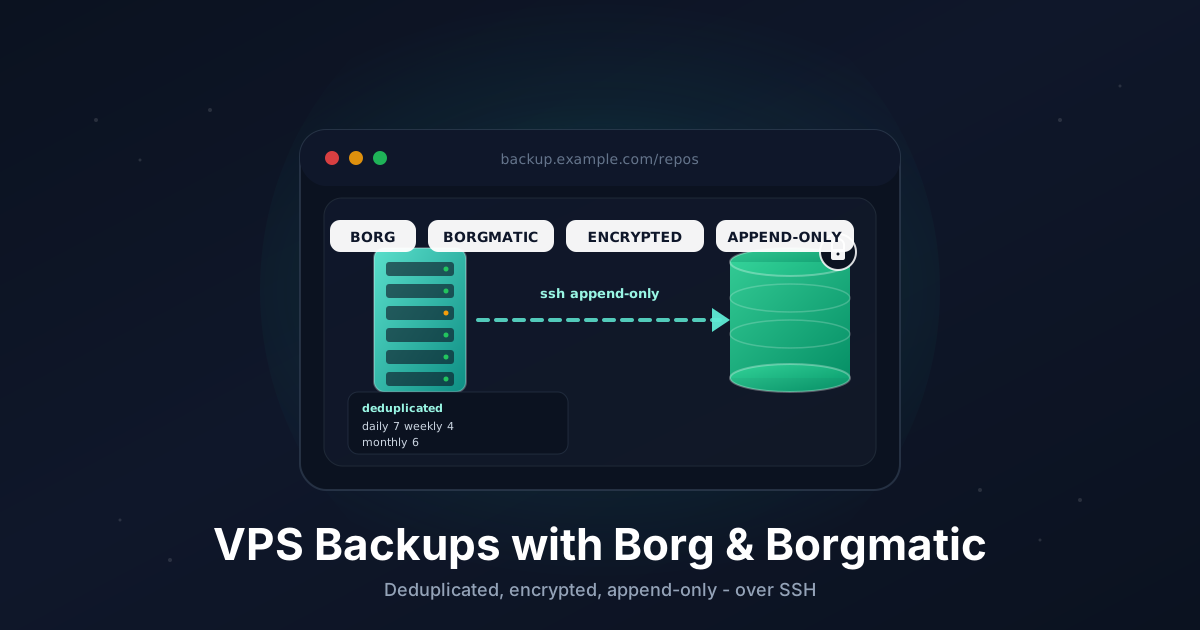
Every VPS owner has the same blind spot: the backup that was never tested, or never ran at all. The day the disk fills, a bad migration wipes a table, or a deploy script rm -rfs the wrong directory, you find out exactly how good your backups are - and by then it's too late to improve them.
BorgBackup is one of the best answers to that problem. It does deduplicated, compressed, encrypted backups, and it can push them over plain SSH to any box you control - another VPS, a home server, or a cheap storage box. Borgmatic wraps Borg in a single YAML config so you don't hand-write long command lines: it handles retention, integrity checks, database dumps, and monitoring pings for you.
If you already read our Restic to S3 guide, think of this as the SSH-native sibling. Borg shines when your backup target is a Linux box you can SSH into rather than an object store, and its append-only mode gives you real protection against a compromised server deleting its own history.
TL;DR
- Pick a backup target you can reach over SSH (a second VPS or a storage box)
- Install
borgbackupand Borgmatic on the server you want to protect - Create an SSH key for the backup user and lock it down with
borg serve --append-only - Initialize an encrypted Borg repository and export the key
- Write one
/etc/borgmatic/config.yamlwith source dirs, retention, checks, and database dumps - Run the first backup by hand, then schedule it with a systemd timer
- Test a restore before you trust it
Total time: about 30 minutes.
Why Borg Over a Plain Tarball or rsync
A nightly tar or rsync to another box works until it doesn't. Borg gives you three things those don't:
- Deduplication. Borg splits files into content-defined chunks and stores each unique chunk once. Backing up 50 GB of mostly-unchanged data every night costs you a few MB after the first run, not 50 GB.
- Point-in-time archives. Every run creates a named snapshot. You can mount or extract any past archive without rolling forward through diffs.
- Encryption you hold the key to. The repository is authenticated and encrypted client-side. The backup host - even if it's someone else's storage box - never sees your plaintext.
What You Need
- A VPS you want to back up, running Ubuntu 22.04/24.04, Debian 12, or similar, with root or sudo
- A second machine reachable over SSH to hold the backups (another small VPS, a NAS, or a managed Borg-compatible storage box)
- A few directories worth protecting:
/etc,/home,/opt,/var/lib/docker/volumes, your database - Optional: a free Healthchecks.io account to alert you when a backup silently stops running
The backup target does not need Borgmatic - only Borg itself. The two boxes should be in different failure domains: a backup on the same provider, same region, same account is better than nothing but won't save you from an account suspension.
Step 1: Prepare the Backup Host
On the backup host (the box that will store the archives), create a dedicated user and a directory for repositories. Borg can run unprivileged here.
sudo adduser --disabled-password --gecos "" borg
sudo mkdir -p /home/borg/repos
sudo chown -R borg:borg /home/borg/repos
Install Borg on the backup host too - the client talks to a remote borg serve process, so both ends need the binary:
sudo apt update
sudo apt install -y borgbackup
Step 2: Set Up an SSH Key From the Source VPS
On the source VPS (the one you're protecting), generate a dedicated key for backups so you can revoke it independently:
sudo ssh-keygen -t ed25519 -N "" -f /root/.ssh/borg_backup -C "borg@$(hostname)"
sudo cat /root/.ssh/borg_backup.pub
Copy that public key. On the backup host, add it to the borg user's authorized_keys, but wrap it in a forced command so this key can only ever run Borg in append-only mode:
sudo -u borg mkdir -p /home/borg/.ssh
sudo -u borg tee /home/borg/.ssh/authorized_keys >/dev/null <<'EOF'
command="borg serve --append-only --restrict-to-path /home/borg/repos",restrict ssh-ed25519 AAAA...your-key-here... borg@myvps
EOF
sudo -u borg chmod 600 /home/borg/.ssh/authorized_keys
Back on the source VPS, confirm the key works and pin the host:
sudo ssh -i /root/.ssh/borg_backup [email protected]
You should see a Borg protocol message and the connection close - that's the forced command refusing an interactive shell, which is exactly right. Add an SSH config entry so Borg picks up the key automatically:
sudo tee /root/.ssh/config >/dev/null <<'EOF'
Host backup.example.com
    User borg
    IdentityFile /root/.ssh/borg_backup
    IdentitiesOnly yes
EOF
sudo chmod 600 /root/.ssh/config
If your backup host listens on a non-standard SSH port, add Port 2222 to that block.
Step 3: Install Borgmatic on the Source VPS
Install Borg from the distro, but install Borgmatic into its own virtualenv so you get a recent version regardless of how old your distro's package is:
sudo apt install -y borgbackup python3-venv
sudo python3 -m venv /opt/borgmatic
sudo /opt/borgmatic/bin/pip install --upgrade pip borgmatic
sudo ln -sf /opt/borgmatic/bin/borgmatic /usr/local/bin/borgmatic
borgmatic --version
Step 4: Initialize the Repository
Generate a strong passphrase and store it where Borgmatic can read it. Root-only file permissions keep it off the radar of other processes:
openssl rand -base64 32 | sudo tee /root/.borg-passphrase >/dev/null
sudo chmod 600 /root/.borg-passphrase
Now create the encrypted repository on the backup host. repokey-blake2 keeps the key inside the repo (protected by your passphrase) and uses the faster BLAKE2 hash:
sudo BORG_PASSPHRASE="$(cat /root/.borg-passphrase)" \
  borg init --encryption=repokey-blake2 \
  ssh://backup.example.com/./repos/myvps
The /./ in the path means "relative to the borg user's home", so this lands in /home/borg/repos/myvps.
Immediately export the repository key and save it alongside your passphrase. With repokey, the key lives in the repo - but if the repo is ever lost or corrupted, this export is your only way back in:
sudo BORG_PASSPHRASE="$(cat /root/.borg-passphrase)" \
  borg key export ssh://backup.example.com/./repos/myvps /root/borg-key-export.txt
Copy /root/borg-key-export.txt and the passphrase into your password manager, then delete the export file from the server.
Step 5: Write the Borgmatic Config
Generate a starter config and then replace it with the one below:
sudo mkdir -p /etc/borgmatic
sudo borgmatic config generate
Edit /etc/borgmatic/config.yaml so it looks like this:
source_directories:
    - /etc
    - /home
    - /opt
    - /var/lib/docker/volumes

repositories:
    - path: ssh://backup.example.com/./repos/myvps
      label: offsite

encryption_passcommand: cat /root/.borg-passphrase

exclude_patterns:
    - '*/.cache'
    - '*/node_modules'
    - '*/tmp'
    - /var/lib/docker/volumes/*/_data/*.sock

compression: zstd,3

keep_daily: 7
keep_weekly: 4
keep_monthly: 6

checks:
    - name: repository
    - name: archives
      frequency: 2 weeks

healthchecks:
    ping_url: https://hc-ping.com/your-uuid-here
A few notes on what each block does:
encryption_passcommandreads the passphrase from the file you created, so it never sits in the config in plaintext.compression: zstd,3is a good default - fast, and it shrinks text and database dumps well.- The
keep_*keys define retention. After each backup Borgmatic prunes anything outside this window. (On Borgmatic versions older than 1.8 these live under aretention:section instead of at the top level.) checksruns a cheap repository check every time and a deeper archive-data check every two weeks.
Step 6: Add Database Dumps
If your VPS runs PostgreSQL or MySQL/MariaDB, do not just back up the raw data files - a copy taken mid-write can be unrestorable. Borgmatic can dump databases to a consistent snapshot and fold them into the same archive. Add to the config:
postgresql_databases:
    - name: all

mariadb_databases:
    - name: all
Borgmatic runs pg_dumpall / mysqldump before the file backup, streams the dump into the archive, and cleans up afterward - no temp file left on disk. For PostgreSQL it reads credentials from the local socket as the running user; if you connect over TCP, add hostname, username, and password keys per database.
Step 7: First Backup and Verify
Run the whole pipeline once by hand. -v 1 shows what's happening:
sudo borgmatic --verbosity 1
This creates the database dumps, backs up your source directories, prunes old archives, and runs the repository check. List what landed in the repo:
sudo borgmatic list
sudo borgmatic info
You should see one archive named with the current timestamp and the deduplicated size. The first run uploads everything; the next will only send changed chunks.
Step 8: Schedule It With a systemd Timer
Borgmatic should run unattended. Create a service unit at /etc/systemd/system/borgmatic.service:
[Unit]
Description=borgmatic backup
Wants=network-online.target
After=network-online.target

[Service]
Type=oneshot
ExecStart=/usr/local/bin/borgmatic --verbosity -1 --syslog-verbosity 1
Nice=10
IOSchedulingClass=best-effort
IOSchedulingPriority=7
And a timer at /etc/systemd/system/borgmatic.timer:
[Unit]
Description=Run borgmatic nightly

[Timer]
OnCalendar=*-*-* 03:00:00
RandomizedDelaySec=30m
Persistent=true

[Install]
WantedBy=timers.target
Enable it:
sudo systemctl daemon-reload
sudo systemctl enable --now borgmatic.timer
systemctl list-timers borgmatic.timer
Persistent=true means a backup missed while the VPS was off runs at the next boot. RandomizedDelaySec spreads load if you run this on several boxes pointed at the same host.
Pruning with append-only mode
Because the source VPS key is --append-only, it can create archives but not delete them - so server-side prunes from the client are refused. That's intentional. Borg still tracks what would be pruned, and you reconcile it by running a compaction on the backup host under a normal (non-append-only) account on a schedule you control. The simplest safe pattern: leave a generous retention, and once a month log into the backup host directly and run:
sudo -u borg BORG_PASSPHRASE='...' borg compact /home/borg/repos/myvps
This keeps deletion authority on the box the attacker on your source VPS cannot reach.
Step 9: Test a Restore
This is the step everyone skips. Don't. Mount the latest archive read-only and poke around:
sudo mkdir -p /mnt/borg
sudo borgmatic mount --archive latest --mount-point /mnt/borg
ls /mnt/borg
Browse to a file you know, confirm its contents, then unmount:
sudo borgmatic umount --mount-point /mnt/borg
To pull a single path back out of an archive without mounting:
sudo borgmatic extract --archive latest --path etc/nginx --destination /tmp/restore
For a database, restore the dump that Borgmatic stored:
sudo borgmatic restore --archive latest
If you can mount an archive and read a file, your backups are real. If you can't, you found out today instead of on the worst day.
Troubleshooting
Connection closed by remote hoston init - the forced command is working but the path is wrong, or Borg isn't installed on the backup host. Confirmborgis on the host'sPATHand the repo path matches--restrict-to-path.Repository is already locked- a previous run died mid-backup. Clear it withsudo borgmatic break-lockonce you've confirmed nothing is actually running.borg: command not foundover SSH - non-login shells on the backup host don't load the right PATH. Install Borg system-wide (apt install borgbackup) rather than into a user venv.- Prune is refused / archives never shrink - expected with
--append-only. Compact on the backup host directly (Step 8), not from the client. - Healthchecks never pings - check the source VPS can reach
hc-ping.comoutbound; a strict egress firewall will silently drop it.
Going Further
- Add a second repository (a local USB disk or a different provider) to the
repositories:list - Borgmatic backs up to all of them in one run, giving you the 3-2-1 rule for free. - Wire failures into alerts beyond Healthchecks with Borgmatic's ntfy or PagerDuty hooks.
- Harden the source VPS itself so a backup is the last line of defense, not the first - see our SSH hardening and fail2ban guide.
- If you'd rather push to object storage than an SSH host, the Restic to S3 guide covers that path.
Need a reliable second box to hold your Borg repositories? Our Linux VPS plans give you full root, fast NVMe storage, and a clean public IP - perfect as an off-site backup target. See the options.