Set Up a WireGuard VPN on a VPS in 10 Minutes
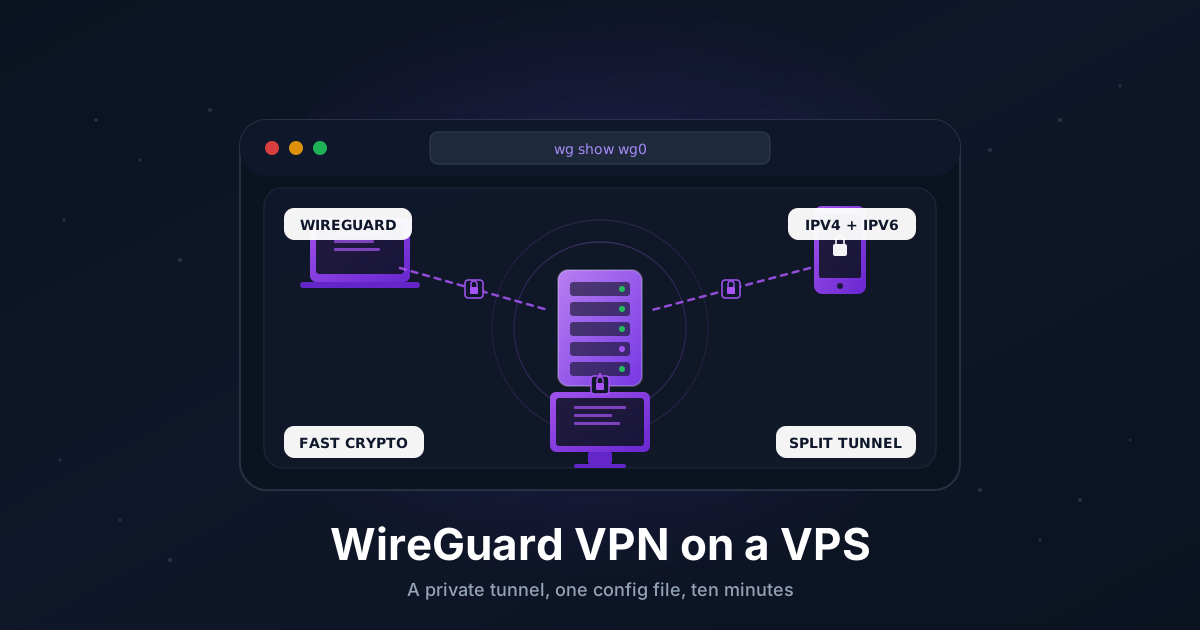
A personal VPN is one of those small-effort, big-payoff things. With a cheap VPS and twenty lines of config, you get an encrypted tunnel that lets you browse from a stable IP on hotel Wi-Fi, reach private services that never touch the public internet, and stitch a couple of servers together as a mini mesh.
WireGuard is the easiest way to do it. The kernel module ships with every modern Linux, the config files are short enough to print, and the cryptography is fast enough that on a small VPS you'll saturate the network long before the CPU.
This guide walks through a working setup on Ubuntu 22.04 or 24.04: server install, key generation, a wg0.conf for both ends, NAT and firewall rules, and a client config you can scan into the WireGuard mobile app as a QR code.
TL;DR
- Enable IPv4 forwarding on the VPS
- Install WireGuard, generate server and client keypairs
- Write
/etc/wireguard/wg0.confon the server with aMASQUERADErule - Open UDP
51820in UFW and startwg-quick@wg0 - Generate a client config and feed it to
qrencode -t ansiutf8for the mobile app - Confirm with
wg showand a quick traceroute
Total time: about 10 minutes if DNS and SSH already work.
What You Need
- A VPS running Ubuntu 22.04 or 24.04 with root or sudo access
- One UDP port open to the internet (we'll use
51820) - A device to connect from (laptop, phone, or another Linux box)
- About 256 MB of free RAM. WireGuard itself uses almost none
If you don't have a VPS yet, anything in the entry tier works. WireGuard runs in kernel space, so even the smallest plans push tunnels at line rate.
When WireGuard, When Tailscale
Both are great. They solve slightly different problems.
- WireGuard is the protocol. You run it yourself, you own every key, and you decide the topology. Best when you want a stable exit IP, a single server you fully control, or you're routing into a specific subnet.
- Tailscale wraps WireGuard with key distribution, NAT traversal, an admin UI, and ACLs. Best when you want devices to reach each other from anywhere with no port forwarding and minimal config.
If your goal is a clean exit node on a VPS you already pay for, plain WireGuard is hard to beat. If your goal is "every laptop, phone, and server in my life can ping each other," see our Tailscale guide instead. The two play well together. Some people run Tailscale for the mesh and a separate WireGuard tunnel as a regional exit.
Step 1: Update the VPS and Enable IP Forwarding
A WireGuard server has to forward packets between the tunnel and the public interface. Out of the box, Linux drops them.
sudo apt update
sudo apt upgrade -y
Enable IPv4 forwarding so it survives reboots:
echo "net.ipv4.ip_forward = 1" | sudo tee /etc/sysctl.d/99-wireguard.conf
sudo sysctl -p /etc/sysctl.d/99-wireguard.conf
If you also want IPv6 inside the tunnel, add net.ipv6.conf.all.forwarding = 1 to the same file.
Verify:
sysctl net.ipv4.ip_forward
You should see net.ipv4.ip_forward = 1.
Step 2: Install WireGuard
On Ubuntu the package is in the default repos:
sudo apt install -y wireguard wireguard-tools qrencode
qrencode is optional, but it's what we'll use later to make a scannable QR for the mobile app.
Confirm the kernel module is available:
sudo modprobe wireguard
lsmod | grep wireguard
If modprobe fails, you're probably on an unusual kernel. The userland fallback (wireguard-go) works but isn't covered here.
Step 3: Generate Server and Client Keypairs
WireGuard uses a simple key model: each peer has a private key and a public key. The server needs to know every client's public key, and each client needs to know the server's public key. Nothing is signed by a CA.
Lock down the directory before writing keys to it:
sudo mkdir -p /etc/wireguard
sudo chmod 700 /etc/wireguard
cd /etc/wireguard
Generate the server keypair:
wg genkey | sudo tee server_private.key | wg pubkey | sudo tee server_public.key
sudo chmod 600 server_private.key
And one keypair per client. We'll create a single client called phone for now:
wg genkey | sudo tee phone_private.key | wg pubkey | sudo tee phone_public.key
sudo chmod 600 phone_private.key
Repeat for each device. Save the contents of each *_private.key and *_public.key somewhere you'll reference in the next two steps.
Step 4: Write the Server Config
Find your VPS public network interface. On most clouds it's eth0, on Hetzner and a few others it's ens3 or similar:
ip -o -4 route show to default | awk '{print $5}'
Note the name. Now create /etc/wireguard/wg0.conf:
[Interface]
Address = 10.8.0.1/24
ListenPort = 51820
PrivateKey = SERVER_PRIVATE_KEY_HERE
SaveConfig = false

PostUp = iptables -A FORWARD -i wg0 -j ACCEPT
PostUp = iptables -t nat -A POSTROUTING -o eth0 -j MASQUERADE
PostDown = iptables -D FORWARD -i wg0 -j ACCEPT
PostDown = iptables -t nat -D POSTROUTING -o eth0 -j MASQUERADE

[Peer]
# phone
PublicKey = PHONE_PUBLIC_KEY_HERE
AllowedIPs = 10.8.0.2/32
Replace SERVER_PRIVATE_KEY_HERE with the contents of server_private.key and PHONE_PUBLIC_KEY_HERE with the contents of phone_public.key. If your default interface isn't eth0, change both PostUp/PostDown lines.
A few notes:
10.8.0.0/24is the VPN's private subnet. Pick anything in RFC1918 that doesn't overlap your home or office LAN.ListenPort = 51820is the WireGuard convention. You can use any UDP port.MASQUERADEis the line that actually lets clients reach the public internet through the VPS. Forget it and tunnels still come up but no traffic flows.
Lock the file down. WireGuard refuses to start if the config is world-readable:
sudo chmod 600 /etc/wireguard/wg0.conf
Step 5: Open the Firewall
If you use UFW, allow the WireGuard UDP port and reload:
sudo ufw allow 51820/udp
sudo ufw allow OpenSSH
sudo ufw enable
sudo ufw status verbose
If you use a cloud provider firewall (Hetzner Cloud, AWS Security Groups, OVH IP-firewall, etc.), open UDP 51820 there too. UFW won't help if packets are dropped upstream.
Step 6: Start WireGuard
Bring the interface up once to test:
sudo wg-quick up wg0
sudo wg show
You should see interface: wg0 and a [Peer] block with latest handshake blank for now (no client has connected yet).
Enable it on boot:
sudo systemctl enable wg-quick@wg0
sudo systemctl status wg-quick@wg0
The wg-quick@ template unit reads /etc/wireguard/wg0.conf and runs everything in it, including the PostUp/PostDown iptables rules.
Step 7: Write the Client Config
On the client side, the config is even shorter. Create phone.conf somewhere you can copy or scan it:
[Interface]
PrivateKey = PHONE_PRIVATE_KEY_HERE
Address = 10.8.0.2/24
DNS = 1.1.1.1, 9.9.9.9

[Peer]
PublicKey = SERVER_PUBLIC_KEY_HERE
Endpoint = YOUR_VPS_PUBLIC_IP:51820
AllowedIPs = 0.0.0.0/0, ::/0
PersistentKeepalive = 25
Replace the three placeholders with the phone's private key, the server's public key, and the VPS's public IPv4. The DNS line is optional but strongly recommended. Without it, the device keeps using its current resolver and you'll get DNS leaks.
The trade-off in plain English:
- Full tunnel (
0.0.0.0/0): safer on hostile Wi-Fi, your real IP is hidden from sites you visit, but bandwidth is bottlenecked by the VPS link. - Split tunnel (specific subnets): fast, only routes the traffic that needs the VPN, but doesn't hide anything else.
For digital-nomad use, full tunnel is the right default. For "I just want to reach a private database on the VPS," split tunnel is plenty.
Step 8: Generate a QR Code for the Mobile App
The official WireGuard apps for iOS and Android can scan a QR code instead of asking you to type a 44-character base64 key on a phone keyboard. Run this on the VPS where phone.conf lives:
qrencode -t ansiutf8 < phone.conf
A blocky black-and-white QR code prints right in your terminal. Open the WireGuard app on your phone, tap the plus button, choose Create from QR code, and point the camera at the screen. The whole config is imported in one shot.
For laptops and desktops, just copy phone.conf over and use the official client. On Linux you can drop it in /etc/wireguard/phone.conf and run wg-quick up phone.
Step 9: Confirm It Works
Toggle the connection on. Then on the VPS:
sudo wg show
You should now see a recent latest handshake (under a minute old) and non-zero transfer: bytes for the peer.
On the client, check that traffic actually exits the VPS:
curl -4 ifconfig.io
The IP returned should be your VPS's public IP, not your local ISP. If you set DNS = in the client config, also test:
dig +short whoami.cloudflare ch txt @1.1.1.1
That returns the resolver IP that answered the query, which should now be one of your tunnel's resolvers.
Step 10: Add More Clients
The flow is the same as Step 3 and Step 4. For each new device:
- Generate a fresh keypair on the server:
wg genkey | tee laptop_private.key | wg pubkey > laptop_public.key - Append a new
[Peer]block to/etc/wireguard/wg0.confwith that public key and the next free address (10.8.0.3/32,10.8.0.4/32, etc.). - Reload the running interface without dropping existing peers:
sudo wg syncconf wg0 <(wg-quick strip wg0)
- Build a matching client config with the new private key and ship it to the device.
If you find yourself adding peers a lot, see Going Further below for tools that automate this.
Reaching Private Services on the VPS
One nice property of this setup: anything bound to the VPS's tunnel IP (10.8.0.1) is reachable only by VPN clients. That makes a great home for tools you don't want on the public internet.
For example, run a private service on the VPS:
# Example: a database that listens only on the WireGuard interface
# (in postgresql.conf)
listen_addresses = '10.8.0.1'
Now 10.8.0.1:5432 works from any connected client and is invisible from the open web. No reverse proxy, no auth wall, just network-level isolation.
The same trick works for anything HTTP. Bind your dashboard to 10.8.0.1 and you have a private internal site without buying a second VPS or fighting with Cloudflare Tunnels.
Troubleshooting
Handshake completes but no traffic flows. Almost always one of two things: IP forwarding never got enabled (sysctl net.ipv4.ip_forward should be 1) or the MASQUERADE line is missing or pointing at the wrong interface. Check iptables -t nat -L POSTROUTING -n -v on the server and confirm you see a MASQUERADE rule with packet counters going up.
RTNETLINK answers: Operation not supported when running wg-quick up wg0. The kernel module isn't loaded or the running kernel doesn't have it. Try sudo modprobe wireguard. On unusual kernels (some VPS providers ship custom builds), install wireguard-dkms so the module compiles for your kernel.
DNS leaks. The client connects, traffic flows, but whoami.cloudflare reports your real ISP. You forgot to set DNS = in the client config, or the OS is using its own DoH resolver. On Windows and Android the WireGuard apps handle this automatically once DNS = is set. On macOS and iOS, double-check that the WireGuard tunnel is the active interface in network settings.
Mobile client won't reconnect after roaming between Wi-Fi and LTE. Add PersistentKeepalive = 25 to the client's [Peer] block (already in the example above). Without it, NAT mappings on carrier networks expire and the tunnel goes silent until you toggle it manually.
The config file is rejected with "permission denied" or "key file not readable". WireGuard refuses to read configs that are world-readable. Run sudo chmod 600 /etc/wireguard/*.conf and try again.
Going Further
- Compare with Tailscale. When you want a mesh of dozens of devices instead of a hub-and-spoke, the management overhead of plain WireGuard adds up. Tailscale (and its open-source control plane Headscale) hands you ACLs, magic DNS, and key rotation for free.
- Self-host Headscale. If you like the Tailscale model but want to own the coordination server too, Headscale runs on the same VPS and speaks the Tailscale protocol. You get the polish of a mesh VPN with none of the SaaS lock-in.
- Build a multi-hop or mesh setup. Run WireGuard between two VPS in different regions, advertise each region's subnet via
AllowedIPs, and you have a private overlay between continents. Useful for replicating databases or serving private services from two regions without exposing them publicly. - Add monitoring.
wg-json(from thewireguard-toolssource repo) outputs handshake state in a format Prometheus can scrape. A simple dashboard tells you when a peer hasn't checked in for an hour. - Audit the firewall. Once everything works, tighten
ufwso SSH is only reachable through the tunnel, and the only open public port is51820/udpplus whatever your apps need. That's the same end state as the Tailscale guide above, just with a different transport.
That's the whole thing. One config file on each side, one UDP port, one MASQUERADE rule. WireGuard is small enough to fit in your head, which is rare for VPN software and a big part of why it's worth running yourself.
Need a VPS that's a good fit for a personal VPN exit node? Our Linux plans include unmetered traffic and IPv6 out of the box, and the kernel ships with WireGuard ready to go. See the options.