Caddy Reverse-Proxy Patterns That Actually Work in Production
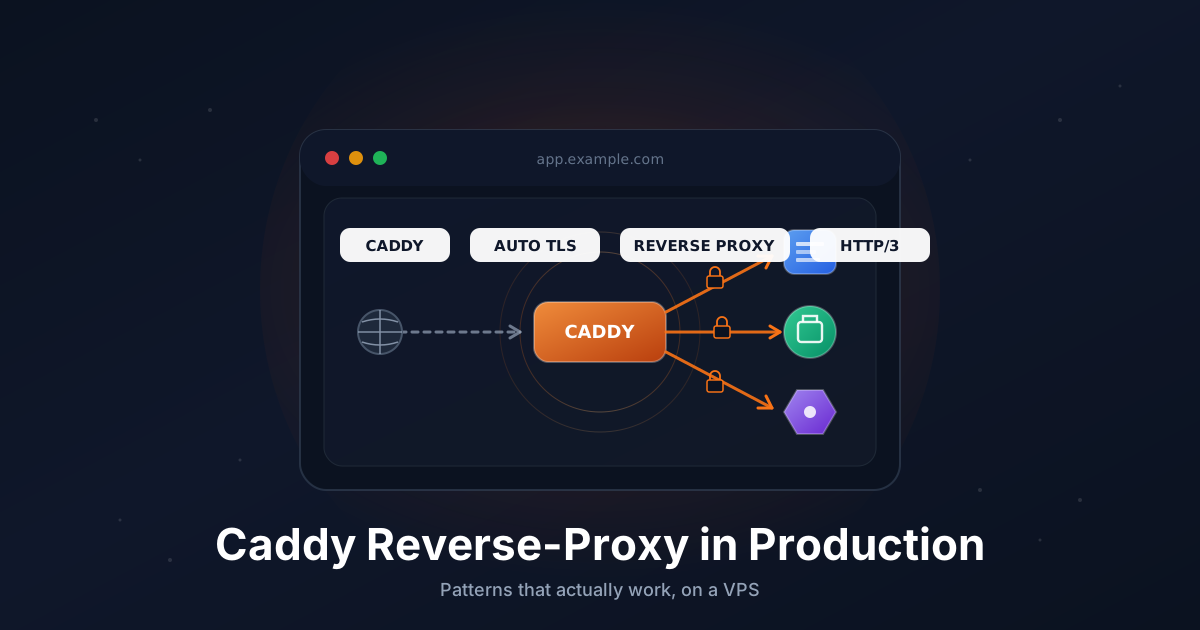
Caddy is the easiest way I know to put HTTPS in front of anything on a VPS. The default config is one line per site, certificates renew themselves, and there is no separate certbot cron job to forget about.
The catch is that most tutorials show you the absolute minimum and stop. The patterns you actually need in production (Docker upstreams, wildcard certs via DNS, IP allowlists, reloads without dropping connections) live across a dozen GitHub issues and forum threads.
This guide collects the configs I keep reaching for on real servers. Every Caddyfile here parses with caddy validate, and every step assumes a fresh Ubuntu 22.04 or 24.04 VPS.
TL;DR
- Install Caddy from the official APT repo, never the distro one
- One site block per hostname, auto-HTTPS on by default
- Reverse-proxy a Docker container by hostname, not host port
- Use
header_upto forward client IP and original scheme - Wildcard certs need the DNS challenge and a Caddy build with the right plugin
sudo systemctl reload caddyswaps config without dropping connections
Total reading time: about 12 minutes. Setup time: 20 minutes for a clean server.
Step 1: Install Caddy from the Official APT Repo
The Caddy package in Ubuntu's universe repo is years out of date and ships without the modules you'll want later. Use the official repo instead.
sudo apt update
sudo apt install -y debian-keyring debian-archive-keyring apt-transport-https curl

curl -1sLf 'https://dl.cloudsmith.io/public/caddy/stable/gpg.key' | \
  sudo gpg --dearmor -o /usr/share/keyrings/caddy-stable-archive-keyring.gpg

curl -1sLf 'https://dl.cloudsmith.io/public/caddy/stable/debian.deb.txt' | \
  sudo tee /etc/apt/sources.list.d/caddy-stable.list

sudo apt update
sudo apt install -y caddy
Verify and check the unit is enabled:
caddy version
sudo systemctl status caddy
The package installs a systemd unit, creates a caddy user, and ships a default /etc/caddy/Caddyfile. Configs go in that file (or in /etc/caddy/conf.d/*.caddy if you split them up).
Step 2: Open the Firewall
Auto-HTTPS only works if Let's Encrypt can reach port 80. Open both 80 and 443:
sudo ufw allow 22/tcp
sudo ufw allow 80/tcp
sudo ufw allow 443/tcp
sudo ufw allow 443/udp
sudo ufw enable
UDP 443 is for HTTP/3. Caddy enables it automatically when nothing is in the way.
Step 3: The Simplest Auto-HTTPS Site
Edit /etc/caddy/Caddyfile:
app.example.com {
    respond "Hello from Caddy"
}
Reload:
sudo systemctl reload caddy
Point app.example.com at the VPS, hit the URL in a browser, and you have HTTPS. Caddy talks ACME to Let's Encrypt on first request, stores the cert under /var/lib/caddy, and renews it on its own schedule.
That's the whole setup most blogs show you. Now the patterns that actually matter.
Step 4: Reverse-Proxy a Local App
A typical app listens on a high port like 3000 or 8080. Front it like this:
app.example.com {
    encode zstd gzip
    reverse_proxy 127.0.0.1:3000
}
encode is optional but cheap. It compresses responses before they leave the server. If the upstream is slow or restarts often, lengthen the dial timeout with a transport http { dial_timeout 5s } block.
Step 5: Reverse-Proxy a Docker Container
When Caddy and the app both run on the same Docker network, you address the container by name. No host port needed.
docker-compose.yml:
services:
  app:
    image: ghcr.io/example/app:latest
    restart: unless-stopped
    networks:
      - web

  caddy:
    image: caddy:2
    restart: unless-stopped
    ports:
      - "80:80"
      - "443:443"
      - "443:443/udp"
    volumes:
      - ./Caddyfile:/etc/caddy/Caddyfile:ro
      - caddy_data:/data
      - caddy_config:/config
    networks:
      - web

networks:
  web:

volumes:
  caddy_data:
  caddy_config:
Caddyfile:
app.example.com {
    encode zstd gzip
    reverse_proxy app:3000
}
Two things to notice: the upstream is app:3000, not localhost:3000, because Docker DNS resolves the service name. And the app container does not publish a host port, which means nothing else on the VPS can hit it directly.
If your app uses websockets, the default reverse_proxy already handles Upgrade: websocket correctly. You only need to be explicit if you have multiple upstreams and want to pin the same client to the same backend:
chat.example.com {
    reverse_proxy app1:3000 app2:3000 {
        lb_policy ip_hash
        health_uri /healthz
        health_interval 10s
    }
}
Step 6: Multiple Apps on One Server
Each hostname is its own site block. Caddy figures out which block to use from the SNI and Host header:
app.example.com {
    reverse_proxy 127.0.0.1:3000
}

api.example.com {
    reverse_proxy 127.0.0.1:4000
}

vault.example.com {
    encode zstd gzip
    reverse_proxy 127.0.0.1:8080
}

status.example.com {
    root * /var/www/status
    file_server
}
Caddy issues a separate cert for each hostname, all renewed automatically. For organization, split each site into its own file under /etc/caddy/conf.d/ and import conf.d/*.caddy from the main Caddyfile.
Step 7: Forward the Real Client IP and Scheme
When your app sits behind Caddy, every request looks like it comes from 127.0.0.1 and the scheme is http. That breaks rate limiting, audit logs, and any framework that builds redirect URLs from the request.
reverse_proxy automatically sets X-Forwarded-For, X-Forwarded-Proto, and X-Forwarded-Host. You usually do not need to add anything. If your upstream is picky and wants to see the original Host header too, set it explicitly:
app.example.com {
    reverse_proxy 127.0.0.1:3000 {
        header_up Host {host}
        header_up X-Real-IP {remote_host}
        header_up X-Forwarded-For {remote_host}
        header_up X-Forwarded-Proto {scheme}
    }
}
In your app, trust the proxy. For Laravel, that's App\Http\Middleware\TrustProxies set to '*' when Caddy is on the same host. For Node/Express, it's app.set('trust proxy', 'loopback'). Without that, every framework will keep building http:// URLs.
Step 8: Basic Auth in Front of an App
Sometimes you want a quick lock on a staging site or an internal dashboard. Generate a bcrypt hash:
caddy hash-password
Paste the hash into a basic_auth block:
staging.example.com {
    basic_auth {
        admin $2a$14$Hv5FH9.0xqAd4WTjZw6Y.Or4Mj6ETz9R5xSgYSh0VYZ6.aJ7Kgxxm
    }

    reverse_proxy 127.0.0.1:3000
}
Basic auth is fine as a speed bump. It is not a substitute for real authentication on anything that touches user data.
Step 9: Restrict by IP
For a private admin endpoint, allow a list of IPs and block everything else. Caddy uses named matchers and the not modifier:
admin.example.com {
    @trusted not remote_ip 10.0.0.0/8 192.168.0.0/16 203.0.113.42

    handle @trusted {
        respond "Forbidden" 403
    }

    reverse_proxy 127.0.0.1:9000
}
Read that block as: anything whose remote IP is not in the trusted ranges gets a 403, everything else hits the reverse proxy. Combine with basic auth for two checks:
admin.example.com {
    @untrusted not remote_ip 10.0.0.0/8 192.168.0.0/16

    handle @untrusted {
        respond "Forbidden" 403
    }

    basic_auth {
        admin $2a$14$exampleHashHere
    }

    reverse_proxy 127.0.0.1:9000
}
If the VPS sits behind another proxy or load balancer, swap remote_ip for client_ip so Caddy reads from X-Forwarded-For instead of the TCP peer.
Step 10: Redirect www to Apex
A clean canonical hostname helps with SEO and avoids cookie scope confusion. Caddy can host both names and 301 the www variant:
www.example.com {
    redir https://example.com{uri} permanent
}

example.com {
    encode zstd gzip
    reverse_proxy 127.0.0.1:3000
}
If you want the opposite (apex redirects to www), flip the two blocks. Both still get their own certificates.
Step 11: Wildcard Certs via DNS Challenge
For something like *.example.com, the HTTP challenge is not enough. You need the DNS-01 challenge, and that needs a Caddy build with the matching DNS provider plugin.
The official caddy package does not include DNS plugins. Two ways to add them:
Option A: Build with xcaddy
sudo apt install -y golang-go
go install github.com/caddyserver/xcaddy/cmd/xcaddy@latest

sudo systemctl stop caddy

sudo ~/go/bin/xcaddy build \
    --with github.com/caddy-dns/cloudflare \
    --with github.com/caddy-dns/hetzner \
    --output /usr/bin/caddy

sudo systemctl start caddy
caddy list-modules | grep dns.providers
The new binary replaces the apt one. Apt upgrades will overwrite it later, so either pin the package (sudo apt-mark hold caddy) or rerun xcaddy build after upgrades.
Option B: Custom Docker image
FROM caddy:2-builder AS builder
RUN xcaddy build \
    --with github.com/caddy-dns/cloudflare \
    --with github.com/caddy-dns/hetzner

FROM caddy:2
COPY --from=builder /usr/bin/caddy /usr/bin/caddy
Now configure the wildcard. Cloudflare example with an API token in /etc/caddy/.env:
*.example.com, example.com {
    tls {
        dns cloudflare {env.CF_API_TOKEN}
    }

    @app host app.example.com
    handle @app {
        reverse_proxy 127.0.0.1:3000
    }

    @api host api.example.com
    handle @api {
        reverse_proxy 127.0.0.1:4000
    }

    handle {
        respond "Not found" 404
    }
}
Drop the API token into a systemd override so Caddy can read it:
sudo systemctl edit caddy
[Service]
Environment="CF_API_TOKEN=your-token-here"
Restart and watch the logs. The first issuance happens over DNS-01, which works even if port 80 is closed.
For Hetzner DNS, swap cloudflare for hetzner and use HETZNER_API_TOKEN.
Step 12: Log Rotation
Caddy writes structured JSON logs. Tell each site where to put them:
app.example.com {
    log {
        output file /var/log/caddy/app.log {
            roll_size 100mb
            roll_keep 7
            roll_keep_for 720h
        }
        format json
    }

    reverse_proxy 127.0.0.1:3000
}
roll_size and roll_keep are built in, so you don't need logrotate. The caddy user needs to own the log directory:
sudo mkdir -p /var/log/caddy
sudo chown -R caddy:caddy /var/log/caddy
Step 13: Zero-Downtime Reload
Editing the Caddyfile and restarting the systemd unit drops in-flight connections. Use reload instead. It validates the new config, swaps it in, and drains old workers gracefully:
sudo systemctl reload caddy
The systemd unit calls caddy reload --config /etc/caddy/Caddyfile under the hood. You can run that directly if you prefer:
sudo caddy reload --config /etc/caddy/Caddyfile
Validate before you reload to avoid taking the proxy down with a typo:
sudo caddy validate --config /etc/caddy/Caddyfile
If validation fails, the running config keeps serving. Reload only swaps when the new config parses cleanly.
Troubleshooting
Cert renewal blocked. Check journalctl -u caddy --since "1 hour ago" for ACME errors. Most often it's a firewall rule that started rejecting port 80, or a DNS record that drifted. For wildcard certs, an expired or revoked DNS API token is the usual cause.
502 Bad Gateway from upstream. Caddy is up, the app is not. Hit the upstream directly with curl http://127.0.0.1:3000 or docker compose ps to confirm. If the container is healthy, check header_up Host {host} is set: some apps reject requests where the Host header is localhost.
Mixed content warnings in the browser. The app is generating http:// URLs even though the page loaded over HTTPS. Trust the proxy in your framework so it reads X-Forwarded-Proto and switches to https. In Laravel, App\Providers\AppServiceProvider::boot can call URL::forceScheme('https') in production as a quick fix.
Hostname doesn't resolve yet. Caddy logged something like no such host. DNS has not propagated. Wait a few minutes, run dig +short app.example.com, and try again. Caddy retries cert issuance automatically once the record appears.
address already in use on start. Another service is on port 80 or 443. Almost always nginx or apache2 left over from a previous setup: sudo systemctl disable --now nginx apache2 and reload Caddy.
Going Further
- On-demand TLS lets Caddy issue certs the first time someone visits an unknown hostname. Useful for SaaS where customers bring their own domains. Combine with an
askendpoint that checks each hostname against your database before issuance. - Caddy as a forward proxy with the
forward_proxymodule is handy for outbound egress filtering or per-tenant traffic shaping. Not the default use case but well documented. - JSON config is what the Caddyfile compiles into. For very dynamic setups (programmatic site provisioning, A/B testing routes), drive Caddy through its admin API and skip the Caddyfile entirely.
- Metrics are exposed at
localhost:2019/metricsin Prometheus format. Scrape that and you get request rates, latency histograms, and TLS handshake counts for free.
That's the toolkit. Caddy stays simple until you need it to do more, and then the more is usually four lines of config away.
Looking for a VPS that handles Caddy plus your apps without breaking a sweat? Our Linux plans come with NVMe storage, IPv6, and ports 80/443 open by default. See the options.