Expose a Self-Hosted App with Cloudflare Tunnel - No Open Ports
Most self-hosting guides start the same way: open port 80, open port 443, hope your ISP doesn't block them, and pray your dynamic IP doesn't change overnight. That works until it doesn't. CGNAT, locked-down home networks, or a VPS provider that charges extra for a static IPv4 all break the model.
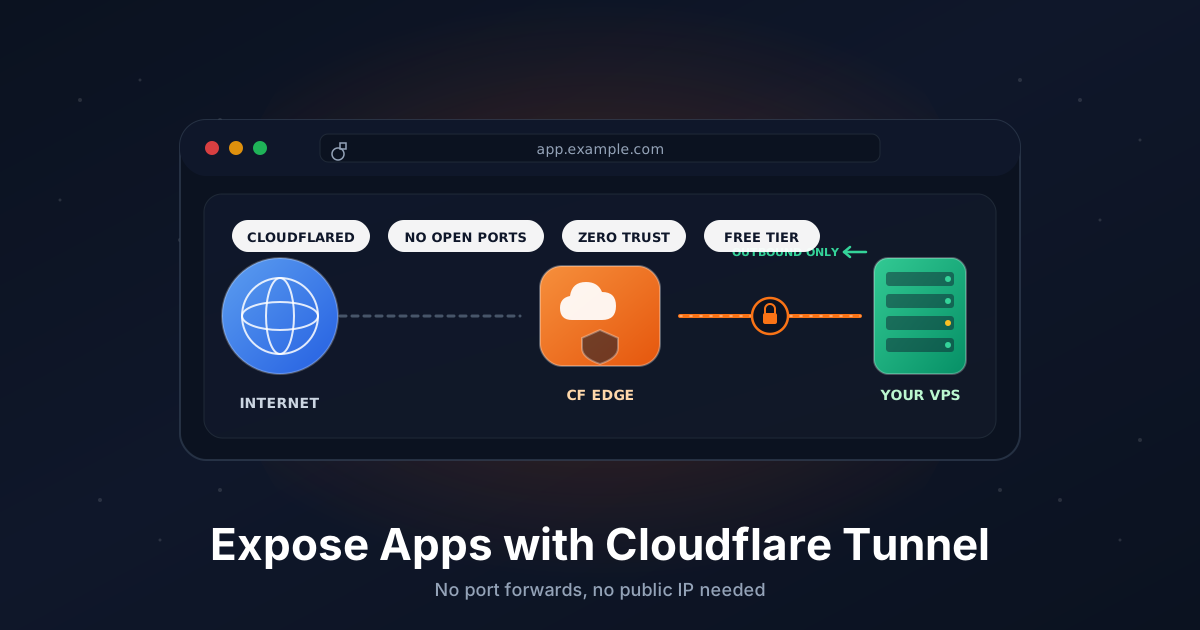
Cloudflare Tunnel takes the inbound side off your hands. A small daemon called cloudflared runs on your server, dials outbound to Cloudflare's edge, and keeps a persistent connection open. When a visitor hits app.example.com, Cloudflare routes that request back through the tunnel to your local service. Your firewall stays closed. There is no public IP to scan.
This guide walks through a production-ready setup on a Debian or Ubuntu VPS: install cloudflared, authenticate, create a tunnel, write the config file, install it as a systemd service, and add the DNS record. We will finish with an optional Cloudflare Access policy so only people you list can reach the app.
TL;DR
- Install
cloudflaredfrom Cloudflare's APT repo on Debian or Ubuntu - Run
cloudflared tunnel loginonce to authorize the daemon for your zone - Create a named tunnel and a
~/.cloudflared/config.ymlmapping a hostname to a localhost service - Install it as a systemd unit so it survives reboots
- Add a DNS CNAME pointing
app.example.comat the tunnel - Optionally protect the route with a Cloudflare Access policy
Total time: about 10 minutes once your domain is on Cloudflare.
What You Need
- A VPS (or any Linux box) running Debian 11+, Ubuntu 22.04+, or similar
- A Cloudflare account
- A domain whose nameservers already point to Cloudflare
- A local web service to expose, for example a Caddy reverse proxy on
127.0.0.1:8080 sudoor root access on the server
If your domain is registered elsewhere, move only the DNS to Cloudflare first. You do not need to transfer the registration.
When Cloudflare Tunnel Is the Right Choice
Tunnels shine when:
- You are behind CGNAT or a residential ISP that blocks ports
80and443 - Your VPS provider does not give you a static IPv4
- You want to remove a public IP from your attack surface entirely
- You want path-based routing or SSO without running your own gateway
Pick something else when:
- You are streaming high-bandwidth media (Plex, Jellyfin, large downloads)
- You need sub-millisecond latency to a game server or trading endpoint
- You need raw TCP/UDP for protocols Cloudflare does not proxy on the free plan
- You want full control over TLS termination on your own box
For those cases, a real VPS with open ports plus our Tailscale guide for management traffic is a better fit.
Step 1: Install cloudflared from the APT Repo
Cloudflare ships a signed APT repo, which is the right way to keep cloudflared patched. On Debian or Ubuntu:
sudo mkdir -p --mode=0755 /usr/share/keyrings
curl -fsSL https://pkg.cloudflare.com/cloudflare-main.gpg | \
  sudo tee /usr/share/keyrings/cloudflare-main.gpg > /dev/null

echo "deb [signed-by=/usr/share/keyrings/cloudflare-main.gpg] \
  https://pkg.cloudflare.com/cloudflared $(lsb_release -cs) main" | \
  sudo tee /etc/apt/sources.list.d/cloudflared.list

sudo apt update
sudo apt install -y cloudflared
Verify the version:
cloudflared --version
You should see something like cloudflared version 2026.x.x. Older one-shot installers from random Gist files exist, but the APT repo is the only path that gets you automatic security updates through unattended-upgrades.
Step 2: Authenticate cloudflared with Your Account
This step pairs the daemon to your Cloudflare account exactly once. Run it as the user that will own the tunnel (often root on a fresh VPS, or a dedicated service user):
cloudflared tunnel login
The CLI prints a URL. Copy it, open it in a browser on any device, log in to Cloudflare, and pick the zone (the domain) you want to use. Cloudflare downloads a certificate to ~/.cloudflared/cert.pem on the server. That file is the long-lived credential the daemon uses to create tunnels and manage DNS records.
If you are SSH'd into a headless box, copy the URL from the terminal into your laptop's browser. Once you click through, the CLI on the server unblocks automatically.
Step 3: Create a Named Tunnel
Pick a short, memorable name. The tunnel is account-wide, not zone-wide, so the name does not have to match a domain:
cloudflared tunnel create app-tunnel
The output looks like this:
Tunnel credentials written to /root/.cloudflared/4f3a9c1e-2b8d-4f7a-9e1b-7c2d0a1b3c4d.json.
Created tunnel app-tunnel with id 4f3a9c1e-2b8d-4f7a-9e1b-7c2d0a1b3c4d
Copy that UUID. You will paste it into the config file in the next step. List your tunnels any time with:
cloudflared tunnel list
The credentials JSON is the per-tunnel secret. Keep it on the server, never check it into git.
Step 4: Run a Local Service to Expose
Cloudflare Tunnel does not host your app. It just forwards HTTP to whatever is already listening on localhost. For this guide we will assume Caddy is sitting in front of a small app at 127.0.0.1:8080.
Install Caddy:
sudo apt install -y debian-keyring debian-archive-keyring apt-transport-https
curl -1sLf 'https://dl.cloudsmith.io/public/caddy/stable/gpg.key' | \
  sudo gpg --dearmor -o /usr/share/keyrings/caddy-stable-archive-keyring.gpg
curl -1sLf 'https://dl.cloudsmith.io/public/caddy/stable/debian.deb.txt' | \
  sudo tee /etc/apt/sources.list.d/caddy-stable.list

sudo apt update
sudo apt install -y caddy
Replace /etc/caddy/Caddyfile with a minimal local config. Note we bind to 127.0.0.1, not the public interface:
http://127.0.0.1:8080 {
    encode zstd gzip
    reverse_proxy 127.0.0.1:3000
}
Restart Caddy:
sudo systemctl restart caddy
Confirm it answers locally:
curl -I http://127.0.0.1:8080
You should get a 200 or 502 (the latter if your upstream app on :3000 is not running yet, which is fine for testing the tunnel path).
If your app already speaks HTTP directly, skip Caddy and point the tunnel straight at it. Caddy is helpful when you want compression, basic auth fallback, or path-based routing inside the tunnel.
Step 5: Write config.yml
Create ~/.cloudflared/config.yml. This is where you map public hostnames to local services:
tunnel: 4f3a9c1e-2b8d-4f7a-9e1b-7c2d0a1b3c4d
credentials-file: /root/.cloudflared/4f3a9c1e-2b8d-4f7a-9e1b-7c2d0a1b3c4d.json

ingress:
  - hostname: app.example.com
    service: http://127.0.0.1:8080
  - service: http_status:404
A few rules to know:
tunnelmust be the UUID printed when you rancloudflared tunnel create.credentials-fileis the absolute path to the JSON file from the same step.ingressis evaluated top to bottom. The last entry must be a catch-all such ashttp_status:404or Cloudflare will reject the config.- You can add more
hostname/servicepairs later (we will cover that in Going Further).
Validate the file before launching:
cloudflared tunnel ingress validate
If it prints OK, you are ready.
Step 6: Add the DNS CNAME
The tunnel is alive on the Cloudflare side, but app.example.com does not point at it yet. The cleanest way is to let cloudflared create the record for you:
cloudflared tunnel route dns app-tunnel app.example.com
That writes a proxied (orange-cloud) CNAME from app.example.com to 4f3a9c1e-2b8d-4f7a-9e1b-7c2d0a1b3c4d.cfargotunnel.com. You can verify in the Cloudflare dashboard under DNS > Records.
If you prefer to add it by hand:
| Type | Name | Target | Proxy |
|---|---|---|---|
| CNAME | app | 4f3a9c1e-2b8d-4f7a-9e1b-7c2d0a1b3c4d.cfargotunnel.com |
Proxied |
The Proxied setting (orange cloud) is required. A grey-cloud CNAME tries to resolve directly and will not reach the tunnel.
Step 7: Run cloudflared Once to Test
Before installing as a service, do a foreground run to make sure ingress works:
cloudflared tunnel run app-tunnel
You should see Connection registered lines for each Cloudflare data center the daemon dials. Open https://app.example.com in a browser. Cloudflare terminates TLS at the edge, the request travels back through the tunnel, and your local Caddy answers.
Hit Ctrl+C once you have confirmed the response. The next step makes it permanent.
Step 8: Install as a systemd Service
cloudflared ships a built-in installer that picks up your config.yml and registers a unit:
sudo cloudflared service install
That command:
- Copies
~/.cloudflared/config.ymland the credentials JSON to/etc/cloudflared/ - Creates a
cloudflaredsystem user - Writes
/etc/systemd/system/cloudflared.service - Enables and starts the unit
Confirm it is healthy:
sudo systemctl status cloudflared
sudo journalctl -u cloudflared -f
You want to see Connection ... registered and no error retries. From this point on, the tunnel comes up automatically on boot, and apt upgrade keeps the binary patched.
If you ever change config.yml, edit the installed copy at /etc/cloudflared/config.yml, then sudo systemctl restart cloudflared. The home-directory copy is no longer the live one.
Step 9: Protect the Route with Cloudflare Access (Optional)
The tunnel is now public over HTTPS. For internal tools (Grafana, n8n, a self-hosted dashboard) you probably want a login wall in front of it. Cloudflare Access adds an SSO layer at the edge, before traffic ever enters the tunnel.
In the Cloudflare dashboard:
- Go to Zero Trust > Access > Applications and click Add an application.
- Choose Self-hosted.
- Set the application domain to
app.example.com. - Add a policy named
Allow team. - Set the action to
Allow. - Add a rule:
Include > Emails ending in > example.com(or specific email addresses, GitHub orgs, Google Workspace groups, etc.). - Save.
Visit https://app.example.com in a private window. Cloudflare prompts for login first and only proxies the request to your origin once the policy passes. Add a TOTP or hardware-key requirement under Authentication methods for proper 2FA.
Troubleshooting
Error 1033 in the browser. The hostname is set up at the edge but no tunnel is currently registered for it. Check sudo systemctl status cloudflared on the server. If the daemon is running, the tunnel UUID in config.yml does not match the one the DNS record points to. Run cloudflared tunnel list and dig CNAME app.example.com and reconcile.
Tunnel shows DOWN in the dashboard. The Cloudflare UI marks tunnels DOWN when no connector has dialed in for several minutes. Almost always either the systemd unit is stopped, the credentials JSON moved or got the wrong permissions, or outbound 443 to *.cloudflareclient.com is blocked by a firewall. Test with cloudflared tunnel run app-tunnel in the foreground for a clear error.
DNS CNAME pointing to the wrong target. A common one when reusing names. The CNAME must end in .cfargotunnel.com and the leading UUID must match the tunnel ID. If you deleted and recreated the tunnel, the old CNAME points at a dead UUID. Re-run cloudflared tunnel route dns ... to overwrite it.
WebSockets drop after about 100 seconds. Cloudflare's free plan applies a default idle timeout. Either send keepalive frames from the client, set proxyConnectTimeout and keepAliveConnections in your ingress config, or move WebSocket-heavy apps off the tunnel onto a Tailscale path.
502 Bad Gateway from Cloudflare. The tunnel is up but cannot reach the local service. Confirm curl -I http://127.0.0.1:8080 works on the server itself, not from your laptop. If the app binds to 0.0.0.0:8080 instead of 127.0.0.1:8080, both work; if it binds to a Docker network, point the tunnel at the container's IP or expose the port on the host loopback.
Going Further
Multiple ingress rules. A single tunnel can serve many hostnames. Stack them in config.yml:
ingress:
  - hostname: app.example.com
    service: http://127.0.0.1:8080
  - hostname: grafana.example.com
    service: http://127.0.0.1:3000
  - hostname: n8n.example.com
    service: http://127.0.0.1:5678
  - service: http_status:404
Add the matching DNS CNAMEs (cloudflared tunnel route dns app-tunnel grafana.example.com) and restart the service.
Cloudflare Access for SSO and 2FA. Hook Access up to Google Workspace, GitHub, Okta, or any OIDC provider under Zero Trust > Settings > Authentication. Then every Access policy can require login through that identity provider, with optional hardware-key 2FA enforced at the edge.
Warp Connector for site-to-site. If you want full mesh networking between your laptop, your VPS, and a home lab, look at Warp Connector. It exposes a whole subnet rather than a single HTTP service and pairs nicely with this tunnel for management traffic.
TCP and SSH ingress. cloudflared can also tunnel raw TCP, including SSH, with the cloudflared access ssh flow on the client side. Great for replacing port 22 with a browser-rendered SSH terminal that is gated by the same Access policy.
That is the whole loop: a private app on a private port, served on a real domain over HTTPS, with no inbound firewall rules and an SSO front door if you want one.
Want a VPS that just works for this kind of setup? Our Linux plans give you root, IPv6, and outbound bandwidth that is happy to keep a tunnel humming. See the options.