Stop Docker From Bypassing UFW on Your VPS
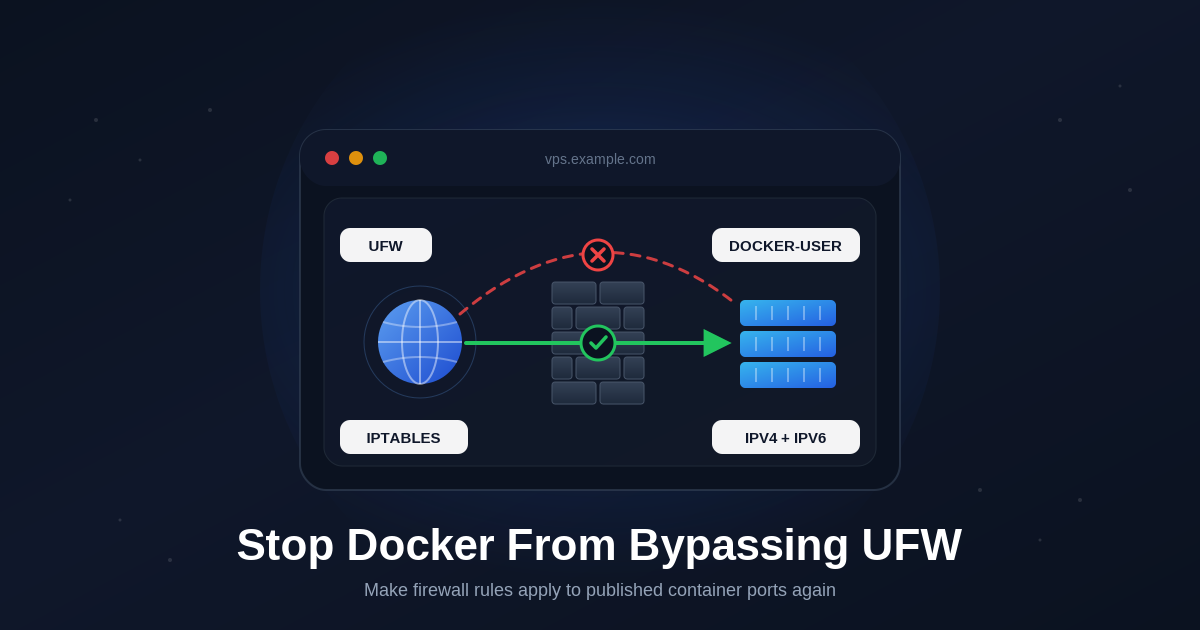
You set UFW to deny all incoming traffic, allow SSH, and feel good about it. Then you run docker run -p 5432:5432 postgres for a quick test, and that database is on the public internet. ufw status doesn't mention it, and ufw deny 5432 doesn't block it. Scanners look for exposed Redis, Postgres, Elasticsearch and admin panels all day, and they usually find one within hours.
This isn't a bug in UFW or in Docker. It's how the two are wired together, and once you see where the packets go, the fix is about fifteen lines of config. This guide shows what is happening, how to check what is exposed on your server right now, and how to make UFW rules apply to Docker containers again without breaking container networking.
TL;DR
- Docker rewrites the destination of published ports before UFW's rules ever see the packet, so
ufw denydoes nothing for them - Bind internal-only ports to
127.0.0.1, or don't publish them at all - Add a small block to
/etc/ufw/after.rulesthat sends Docker traffic through UFW'srouterules via theDOCKER-USERchain - Open public container ports with
ufw route allow, which matches the container port, not the host port - Pin a container IP when two containers listen on the same internal port
- IPv6 visitors usually arrive through
docker-proxy, so public ports also need a plainufw allow - Test from a second machine, before and after
What You Need
- A VPS running Ubuntu 22.04 or 24.04 (Debian 12 works too)
- Docker Engine from Docker's repository or Ubuntu's
docker.iopackage, using its default iptables firewall backend - UFW installed and enabled with SSH allowed (see our SSH hardening guide if you haven't done that yet)
- A second machine, like your laptop, to test from
- About 20 minutes
The rules below were tested with Docker Engine 29 and UFW 0.36, the version Ubuntu 22.04 and 24.04 ship.
Why UFW Doesn't See Docker Traffic
When you publish a port with -p 8080:80, Docker adds a NAT rule. When a packet arrives for port 8080 on your public IP, the kernel rewrites its destination to the container, for example 172.17.0.2:80. That rewrite happens in the nat table before any filtering.
After the rewrite, the packet isn't addressed to the host anymore, so it goes through the FORWARD chain instead of INPUT. Your ufw allow and ufw deny rules live in INPUT, so they never see it. Docker also places its own chains at the very top of FORWARD, ahead of UFW's chains, and accepts traffic to published ports there.
You can see it on any Docker host:
sudo iptables -S FORWARD | head -5
sudo iptables -t nat -S DOCKER
-P FORWARD DROP
-A FORWARD -j DOCKER-USER
-A FORWARD -j DOCKER-FORWARD
-A FORWARD -j ufw-before-logging-forward
-A FORWARD -j ufw-before-forward

-A DOCKER ! -i docker0 -p tcp -m tcp --dport 8080 -j DNAT --to-destination 172.17.0.2:80
The chain names after DOCKER-USER vary between Docker versions, but the order doesn't. Docker's chains come first, and by the time UFW gets a look, the packet has already been accepted.
Two cases are already safe:
- Ports published on loopback, like
-p 127.0.0.1:8080:80, can't be reached from outside. - Containers with
network_mode: hostdon't use NAT at all. Their traffic goes throughINPUT, and normalufw allowrules apply.
Step 1: Find Out What Is Actually Exposed
List every published port:
sudo docker ps --format 'table {{.Names}}\t{{.Ports}}'
NAMES       PORTS
caddy       0.0.0.0:80->80/tcp, [::]:80->80/tcp, 0.0.0.0:443->443/tcp, [::]:443->443/tcp
portainer   0.0.0.0:9443->9443/tcp, [::]:9443->9443/tcp
postgres    0.0.0.0:5432->5432/tcp, [::]:5432->5432/tcp
redis       127.0.0.1:6379->6379/tcp
Anything bound to 0.0.0.0 is reachable over IPv4 from anywhere, no matter what ufw status says ([::] works differently, see Step 6). In the example above, Caddy is supposed to be public, Portainer probably shouldn't be open to the whole internet, and Postgres definitely shouldn't be.
Now confirm it from outside. On your laptop:
nc -zv -w 3 YOUR_SERVER_IP 5432
nc -zv -w 3 YOUR_SERVER_IP 9443
succeeded or open means the whole internet can reach that port. For a full sweep, nmap -Pn -p- --open YOUR_SERVER_IP checks every TCP port. It takes a few minutes, but the result is hard to argue with.
Step 2: Stop Publishing What Doesn't Need to Be Public
The best firewall rule is a port that was never opened. Go through your Compose files and sort each published port into one of three groups.
Only other containers need it. Delete the ports: entry entirely. Containers on the same Compose network reach each other by service name (postgres:5432), with no published port involved:
services:
  app:
    image: ghcr.io/example/app:2.3.1
    environment:
      DATABASE_URL: postgres://app:secret@postgres:5432/app

  postgres:
    image: postgres:17
    # no "ports:" section - only containers on this network can reach it
Only the host needs it (a reverse proxy installed on the host, a backup script, or you over an SSH tunnel). Bind it to loopback:
services:
  postgres:
    image: postgres:17
    ports:
      - "127.0.0.1:5432:5432"
You can still reach it from your laptop through SSH:
ssh -N -L 5432:127.0.0.1:5432 you@YOUR_SERVER_IP
It really is public (your reverse proxy on 80 and 443, a game server, a public API). Leave it published, then let UFW manage it in the next steps.
Apply the changes with sudo docker compose up -d in each project directory and run docker ps again to confirm the bindings changed.
To make loopback the default for a whole stack, set it on the Compose network. Every published port on that network then binds to 127.0.0.1:
networks:
  default:
    driver_opts:
      com.docker.network.bridge.host_binding_ipv4: "127.0.0.1"
Don't count on the daemon-wide "ip": "127.0.0.1" setting in /etc/docker/daemon.json for this. It only applies to the default docker0 bridge, and Compose always creates its own networks, so your Compose ports stay on 0.0.0.0.
Step 3: Send Docker Traffic Through UFW
Docker evaluates one chain before anything else in FORWARD: DOCKER-USER. It exists for your own rules, and Docker never overwrites it. The plan is to make DOCKER-USER check UFW's route rules and drop any new inbound connection to a container that no rule allows.
First, find your public network interface. It's often eth0, but ens3, ens18 and enp1s0 are common too:
IFACE=$(ip -o route show default | awk '{print $5; exit}')
echo "$IFACE"
Back up the stock file, then append the block. The heredoc fills in your interface name:
sudo cp /etc/ufw/after.rules /etc/ufw/after.rules.bak

sudo tee -a /etc/ufw/after.rules > /dev/null <<EOF

# BEGIN UFW AND DOCKER
*filter
:ufw-user-forward - [0:0]
:ufw-docker-deny - [0:0]
:DOCKER-USER - [0:0]
-A DOCKER-USER -m conntrack --ctstate RELATED,ESTABLISHED -j RETURN
-A DOCKER-USER ! -i $IFACE -j RETURN
-A DOCKER-USER -j ufw-user-forward
-A DOCKER-USER -o docker0 -j ufw-docker-deny
-A DOCKER-USER -o br-+ -j ufw-docker-deny
-A ufw-docker-deny -m limit --limit 3/min --limit-burst 10 -j LOG --log-prefix "[UFW DOCKER BLOCK] "
-A ufw-docker-deny -j DROP
COMMIT
# END UFW AND DOCKER
EOF
What each line does:
:DOCKER-USER - [0:0]empties the chain on every UFW reload, so the rules never pile up.:ufw-user-forwardis declared here because UFW loadsafter.rulesbefore it creates its own user chains. Without it, the first boot fails with an unknown chain error.- The
RELATED,ESTABLISHEDline lets replies to existing connections through, including replies to connections your containers open themselves. ! -i $IFACE -j RETURNskips everything that didn't come in on the public interface: traffic between containers, outbound traffic from containers, and traffic from VPN interfaces liketailscale0orwg0. That traffic continues to Docker's normal rules.-j ufw-user-forwardchecks the rules you create withufw route allow. A match accepts the packet right there.- Anything that comes in from the internet, heads for a Docker bridge (
docker0or a Composebr-*network) and matches no route rule gets logged (rate-limited) and dropped.
Reload and check the chain:
sudo ufw reload
sudo iptables -S DOCKER-USER
-N DOCKER-USER
-A DOCKER-USER -m conntrack --ctstate RELATED,ESTABLISHED -j RETURN
-A DOCKER-USER ! -i eth0 -j RETURN
-A DOCKER-USER -j ufw-user-forward
-A DOCKER-USER -o docker0 -j ufw-docker-deny
-A DOCKER-USER -o br-+ -j ufw-docker-deny
Repeat the nc test from your laptop. Ports that answered in Step 1 should now time out, apart from any you already opened for your reverse proxy.
Step 4: Open Public Container Ports With ufw route
Here is the one thing that trips everyone up. By the time DOCKER-USER sees a packet, its destination has already been rewritten to the container. So ufw route allow matches the container port (the right side of 8443:443), not the host port.
For a reverse proxy in Docker publishing 80:80 and 443:443, add route rules for IPv4 visitors, plus plain ufw allow rules on the host ports for IPv6 visitors (Step 6 explains why IPv6 takes a different path):
sudo ufw route allow proto tcp from any to any port 80 comment 'caddy http'
sudo ufw route allow proto tcp from any to any port 443 comment 'caddy https'
sudo ufw allow 80/tcp comment 'caddy http'
sudo ufw allow 443/tcp comment 'caddy https'
Caddy also serves HTTP/3 over UDP. If you publish 443:443/udp, open that too:
sudo ufw route allow proto udp from any to any port 443 comment 'caddy http3'
sudo ufw allow 443/udp comment 'caddy http3'
For an admin panel that only you should reach, limit it to your own IP. Portainer listens on container port 9443:
sudo ufw route allow proto tcp from 203.0.113.7 to any port 9443 comment 'portainer, office only'
Route rules show up in ufw status with FWD:
sudo ufw status
To                         Action      From
--                         ------      ----
22/tcp                     ALLOW IN    Anywhere
80/tcp                     ALLOW IN    Anywhere                   # caddy http
443/tcp                    ALLOW IN    Anywhere                   # caddy https
80/tcp                     ALLOW FWD   Anywhere                   # caddy http
443/tcp                    ALLOW FWD   Anywhere                   # caddy https
9443/tcp                   ALLOW FWD   203.0.113.7                # portainer, office only
To remove one, repeat the command with delete after route:
sudo ufw route delete allow proto tcp from 203.0.113.7 to any port 9443
The Portainer rule only names an IPv4 address, so it stays closed over IPv6, which is what you want here.
Step 5: Target One Container When Ports Collide
to any port 80 opens port 80 on every container that publishes container port 80. Lots of images listen on 80 or 8080 inside the container, so if you run two of them, one rule opens both.
The fix is to give the container you want to expose a fixed address on its own network and point the rule at that address:
services:
  app:
    image: nginx:1.29-alpine
    ports:
      - "8443:80"
    networks:
      public:
        ipv4_address: 172.30.10.10

networks:
  public:
    ipam:
      config:
        - subnet: 172.30.10.0/24
sudo docker compose up -d
sudo ufw route allow proto tcp from any to 172.30.10.10 port 80 comment 'app on 8443'
Pick a subnet that no other network uses yet. This lists the ones in use:
sudo docker network inspect $(sudo docker network ls -q) \
  --format '{{.Name}} {{range .IPAM.Config}}{{.Subnet}} {{end}}'
Because the address is fixed in the Compose file, the rule keeps working across docker compose down and image updates.
Step 6: Cover IPv6 Too
Docker publishes ports on [::] by default. Whether that's a problem depends on the network:
- IPv6 not enabled on the Docker network (the default): IPv6 connections end at
docker-proxy, Docker's userland proxy, which runs as a normal process on the host. That traffic goes throughINPUT, so UFW already filters it, and a plainufw allowon the host port is what opens it. That's why Step 4 adds both kinds of rule for the reverse proxy. - IPv6 enabled (
enable_ipv6: trueon a Compose network): Docker rewrites IPv6 destinations with ip6tables, the same as IPv4, and the same bypass applies.
The block has no IPv4 addresses in it, so it works for IPv6 with one change: UFW names its IPv6 chains ufw6-user-forward and so on, so the chain names get a ufw6- prefix. Add it to after6.rules even if you don't use IPv6 on Docker networks yet. It does nothing until you do:
sudo cp /etc/ufw/after6.rules /etc/ufw/after6.rules.bak

sudo tee -a /etc/ufw/after6.rules > /dev/null <<EOF

# BEGIN UFW AND DOCKER
*filter
:ufw6-user-forward - [0:0]
:ufw6-docker-deny - [0:0]
:DOCKER-USER - [0:0]
-A DOCKER-USER -m conntrack --ctstate RELATED,ESTABLISHED -j RETURN
-A DOCKER-USER ! -i $IFACE -j RETURN
-A DOCKER-USER -j ufw6-user-forward
-A DOCKER-USER -o docker0 -j ufw6-docker-deny
-A DOCKER-USER -o br-+ -j ufw6-docker-deny
-A ufw6-docker-deny -m limit --limit 3/min --limit-burst 10 -j LOG --log-prefix "[UFW DOCKER BLOCK] "
-A ufw6-docker-deny -j DROP
COMMIT
# END UFW AND DOCKER
EOF

sudo ufw reload
sudo ip6tables -S DOCKER-USER
If you're in a new shell, set IFACE again first, as in Step 3.
Every ufw route allow you add without an explicit address creates both an IPv4 and an IPv6 rule, so the route rules from Step 4 already cover IPv6-enabled networks.
Step 7: Verify, Then Reboot and Verify Again
From your laptop, test each port you published:
nc -zv -w 3 YOUR_SERVER_IP 443    # should succeed
nc -zv -w 3 YOUR_SERVER_IP 5432   # should time out
nc -zv -w 3 YOUR_SERVER_IP 9443   # should only succeed from 203.0.113.7
nc -6 -zv -w 3 YOUR_SERVER_IPV6 443
If your server has IPv6, test over both, because they take different paths into Docker.
On the server, the drop counters tell you the rules are doing something:
sudo iptables -L ufw-docker-deny -v -n
sudo journalctl -k --grep 'UFW DOCKER BLOCK' --since '1 hour ago'
The log lines also land in /var/log/ufw.log on systems that run rsyslog, next to UFW's own entries.
Then reboot and run the same nc tests again. At boot, UFW starts before Docker. It creates DOCKER-USER, Docker finds the chain already there and hooks it into FORWARD, and your rules stay in place. A reboot is the only real proof of that.
Approaches That Don't Work
You'll find these suggested on forums. Skip them:
"iptables": falseindaemon.json. Docker stops managing iptables entirely, so containers on bridge networks lose outbound internet access until you write the NAT rules yourself, and they break again every time Docker creates a new network.- Changing
DEFAULT_FORWARD_POLICYin/etc/default/ufw. Docker's chains run before UFW's forward policy is ever reached, so the setting makes no difference to published ports. ufw deny 5432. It's anINPUTrule, and NAT'd container traffic never goes throughINPUT.
Troubleshooting
Ports are still open after the reload. The interface in the ! -i line doesn't match your real public interface, so every packet takes the early RETURN. Compare sudo iptables -S DOCKER-USER with ip -o route show default, fix the name in /etc/ufw/after.rules, then run sudo ufw reload.
Websites behind a Dockerized Caddy or Traefik time out, over IPv4 or only over IPv6. IPv4 visitors need the ufw route allow rules for 80 and 443. IPv6 visitors on a default Docker network need plain ufw allow 80/tcp and 443/tcp. Step 4 adds both.
A ufw route allow for port 8443 opens nothing. You used the host port. Use the container port, the right-hand side of the mapping in docker ps.
ufw reload fails with "Problem running '/etc/ufw/after.rules'". Usually there's a typo, a missing COMMIT line, or an empty interface name because IFACE wasn't set when you ran the heredoc. Look at the end of the file, or restore the backup with sudo cp /etc/ufw/after.rules.bak /etc/ufw/after.rules, reload, and append the block again.
A container is reachable over Tailscale without any route rule. That's intended: the block only filters traffic arriving on the public interface. If you want VPN traffic filtered too, remove the ! -i line and add route rules for the VPN subnet.
Going Further
- Keep admin panels off the public internet. Instead of a
from YOUR_IProute rule, bind them to loopback and reach them over Tailscale. Your IP can change, but your tailnet stays the same. - Let CrowdSec block attackers before they reach your containers. Its firewall bouncer only filters
INPUTby default. AddDOCKER-USERtoiptables_chainsin/etc/crowdsec/bouncers/crowdsec-firewall-bouncer.yamlso banned IPs can't reach published container ports either. The CrowdSec guide covers the setup. - Harden the containers themselves. A firewall limits who can reach a container. Rootless mode, dropped capabilities and read-only filesystems limit the damage when someone gets in anyway.
- Watch for Docker's nftables backend. Docker 29 added an opt-in nftables firewall backend (
"firewall-backend": "nftables"indaemon.json) that has noDOCKER-USERchain. If you switch to it, this block stops working, and you'll filter in your own nftables table instead.
Once it's in place, you only think about it when you publish a new port, and then the question is simply "should this be public?" Most of the time the answer is no, and the port stays closed.
Running Docker on a VPS? Our Linux plans come with full root access, NVMe storage and IPv6, so every firewall rule on the box is yours to set. See the options.