Self-Host PocketBase on a VPS as Your App Backend
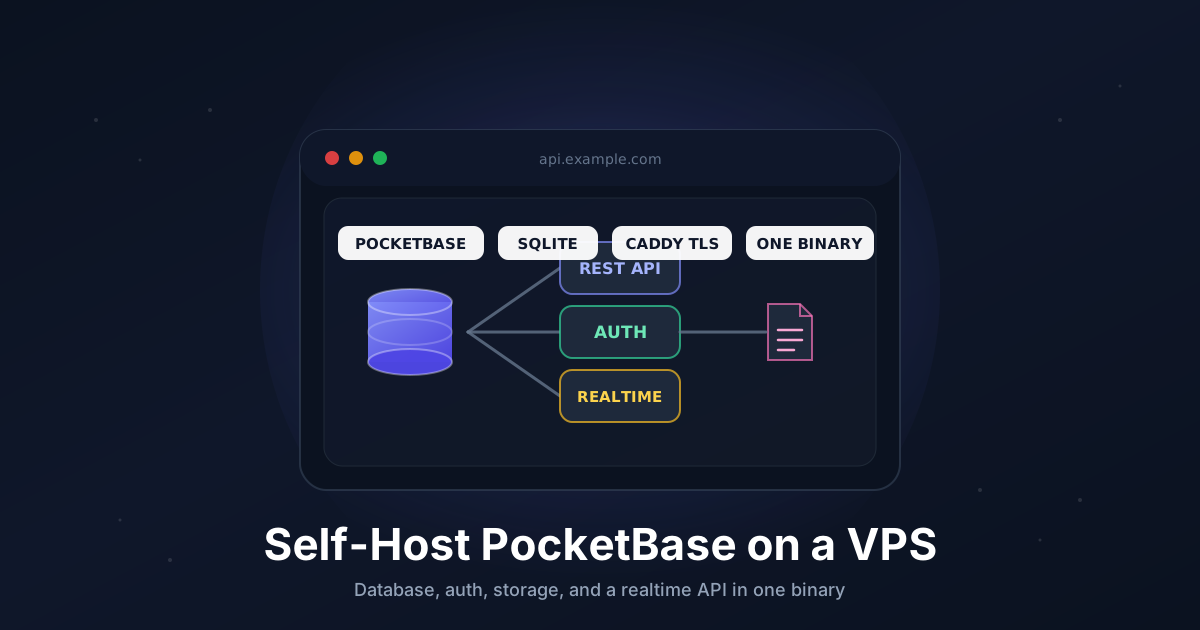
Most side projects die in the backend. You want to ship a small app, but first you need a database, an auth system, file uploads, an admin UI, and an API to glue it together. That is a week of plumbing before you write a single feature. PocketBase collapses all of that into one Go binary backed by SQLite. You get a database, user authentication, file storage, a realtime subscriptions API, and a polished admin dashboard - in a single executable that idles around 20 MB of RAM.
That makes it a perfect fit for a cheap VPS. There is no separate database server, no Redis, no container orchestration. You copy one file to your server, run it behind Caddy for HTTPS, and you have a production backend your web and mobile clients can talk to over a clean REST and realtime API. This guide takes you from a fresh Ubuntu box to a hardened, auto-restarting, automatically-backed-up PocketBase install.
TL;DR
- Download the single PocketBase binary onto a small VPS
- Point a subdomain like
api.example.comat the server - Run it as a
systemdservice so it survives reboots and crashes - Put Caddy in front for automatic HTTPS and a clean public URL
- Create the first superuser, then build collections in the admin UI
- Schedule a nightly backup of the
pb_datadirectory
Total time: about 20 minutes.
What You Need
- A VPS with 256 MB RAM or more running Ubuntu 22.04 or 24.04 (512 MB is comfortable)
- A domain or subdomain you can point at the server
- Ports
80and443open for Let's Encrypt - Root or sudo access
PocketBase is genuinely small. A typical app with a few thousand records and a handful of concurrent users sits well under 100 MB of RAM. It scales vertically surprisingly far - SQLite with WAL mode handles thousands of reads per second on modest hardware.
Step 1: Point a Subdomain at Your VPS
In your DNS provider, add an A record for the API host:
api.example.com → YOUR_VPS_IPV4
Add an AAAA record too if your server has IPv6. Verify it resolves before going further:
dig +short api.example.com
DNS has to point at your VPS before Caddy can request a certificate.
Step 2: Create a Dedicated User
Never run a public-facing service as root. Create a system user that owns the PocketBase files and nothing else:
sudo useradd --system --home /opt/pocketbase --shell /usr/sbin/nologin pocketbase
sudo mkdir -p /opt/pocketbase
sudo chown pocketbase:pocketbase /opt/pocketbase
This account has no login shell, so even if the process is compromised the blast radius is limited to the PocketBase directory.
Step 3: Download the PocketBase Binary
Grab the latest Linux build from the GitHub releases page. Check pocketbase.io for the current version number and architecture - the example below uses amd64. For an ARM VPS, swap in arm64.
cd /tmp
PB_VERSION="0.28.4"
curl -fsSL -o pocketbase.zip \
  "https://github.com/pocketbase/pocketbase/releases/download/v${PB_VERSION}/pocketbase_${PB_VERSION}_linux_amd64.zip"

sudo apt update && sudo apt install -y unzip
unzip pocketbase.zip -d pocketbase-dist

sudo install -m 0755 pocketbase-dist/pocketbase /opt/pocketbase/pocketbase
sudo chown pocketbase:pocketbase /opt/pocketbase/pocketbase
Confirm it runs:
sudo -u pocketbase /opt/pocketbase/pocketbase --version
You should see the version string printed back. The binary is fully self-contained - there is nothing else to install.
Step 4: Run PocketBase as a systemd Service
Running the binary in a terminal is fine for a quick test, but a real deployment needs it to start on boot and restart on failure. Create a unit file:
sudo nano /etc/systemd/system/pocketbase.service
Paste the following:
[Unit]
Description=PocketBase
After=network.target

[Service]
Type=simple
User=pocketbase
Group=pocketbase
LimitNOFILE=4096
Restart=always
RestartSec=5s
WorkingDirectory=/opt/pocketbase
ExecStart=/opt/pocketbase/pocketbase serve --http=127.0.0.1:8090

[Install]
WantedBy=multi-user.target
Note the --http=127.0.0.1:8090 bind. PocketBase listens only on localhost - Caddy will be the only thing exposed to the internet. That keeps the admin UI off the public interface until TLS is in front of it.
Enable and start the service:
sudo systemctl daemon-reload
sudo systemctl enable --now pocketbase
sudo systemctl status pocketbase
The status output should show active (running). If it does not, check the logs with journalctl -u pocketbase -n 50 --no-pager.
Step 5: Put Caddy in Front for HTTPS
Caddy gives you automatic Let's Encrypt certificates and renewals with almost no configuration. Install it from the official repository:
sudo apt install -y debian-keyring debian-archive-keyring apt-transport-https curl
curl -1sLf 'https://dl.cloudsmith.io/public/caddy/stable/gpg.key' \
  | sudo gpg --dearmor -o /usr/share/keyrings/caddy-stable-archive-keyring.gpg
curl -1sLf 'https://dl.cloudsmith.io/public/caddy/stable/debian.deb.txt' \
  | sudo tee /etc/apt/sources.list.d/caddy-stable.list
sudo apt update && sudo apt install -y caddy
Replace the default config with a reverse proxy to PocketBase:
sudo nano /etc/caddy/Caddyfile
api.example.com {
    encode zstd gzip
    reverse_proxy 127.0.0.1:8090

    request_body {
        max_size 50MB
    }
}
The request_body block lifts the upload ceiling so file uploads larger than the default limit go through. Reload Caddy:
sudo systemctl reload caddy
Caddy fetches a certificate on the first request. Open https://api.example.com/_/ in your browser and you should land on the PocketBase admin setup screen.
Step 6: Create the First Superuser
The first account you create owns the instance. You can do it in the browser on the setup screen, or from the command line, which is handy for scripting:
sudo -u pocketbase /opt/pocketbase/pocketbase superuser create \
  [email protected] 'a-long-random-password'
Use a strong, unique password and store it in your password manager. The superuser can read and write every collection and change application settings, so treat it like a root credential.
Step 7: Build Your First Collection
In the admin UI, a "collection" is a table. Click New collection, name it posts, and add fields - say a title text field and a body rich-text field. PocketBase instantly exposes a REST API for it.
From any client you can now read records:
curl https://api.example.com/api/collections/posts/records
Creating a record from JavaScript with the official SDK looks like this:
import PocketBase from 'pocketbase';

const pb = new PocketBase('https://api.example.com');

await pb.collection('users').authWithPassword('[email protected]', 'password');

const record = await pb.collection('posts').create({
    title: 'Hello from my VPS',
    body: 'PocketBase makes this easy.',
});
The realtime API is just as simple - subscribe to a collection and your client gets pushed every change over a single connection:
pb.collection('posts').subscribe('*', (e) => {
    console.log(e.action, e.record);
});
Lock down who can do what with the API rules on each collection. For example, set the list rule to @request.auth.id != "" so only authenticated users can read, and the create rule to the same so anonymous visitors cannot write. These rules are evaluated server-side on every request, so they are your real security boundary - never trust the client.
Step 8: Automate Backups
PocketBase has a built-in backup feature that zips pb_data into a single archive. You can trigger it from the admin UI under Settings > Backups, point it at S3-compatible storage, and schedule it with a cron expression right there. That covers most people.
If you would rather control backups from the host, a small script plus a cron job works well. Because SQLite is a single file, you should let PocketBase create a consistent snapshot rather than copying the live database:
sudo nano /opt/pocketbase/backup.sh
#!/usr/bin/env bash
set -euo pipefail

STAMP="$(date +%Y%m%d-%H%M%S)"
DEST="/opt/pocketbase/backups"
mkdir -p "$DEST"

/opt/pocketbase/pocketbase backup "pb-${STAMP}.zip"
cp "/opt/pocketbase/pb_data/backups/pb-${STAMP}.zip" "$DEST/"

find "$DEST" -name 'pb-*.zip' -mtime +14 -delete
Make it executable and add a nightly cron entry for the pocketbase user:
sudo chmod +x /opt/pocketbase/backup.sh
sudo chown pocketbase:pocketbase /opt/pocketbase/backup.sh
sudo crontab -u pocketbase -e
15 3 * * * /opt/pocketbase/backup.sh >> /opt/pocketbase/backup.log 2>&1
For real disaster recovery, push those archives off the box. Our restic to S3 guide pairs perfectly here - point restic at /opt/pocketbase/backups and you have versioned, encrypted, offsite copies.
Step 9: Keep It Updated
Upgrades are refreshingly boring. Download the new binary, swap it in, and restart:
cd /tmp
PB_VERSION="0.28.5"
curl -fsSL -o pocketbase.zip \
  "https://github.com/pocketbase/pocketbase/releases/download/v${PB_VERSION}/pocketbase_${PB_VERSION}_linux_amd64.zip"
unzip -o pocketbase.zip -d pocketbase-dist

sudo systemctl stop pocketbase
sudo install -m 0755 pocketbase-dist/pocketbase /opt/pocketbase/pocketbase
sudo chown pocketbase:pocketbase /opt/pocketbase/pocketbase
sudo systemctl start pocketbase
Always check the release notes before a major version bump, and take a backup first. PocketBase runs schema migrations automatically on start, so a backup is your only way back if something goes wrong.
Troubleshooting
- Caddy shows a TLS error or 502 - confirm PocketBase is running (
systemctl status pocketbase) and that DNS for the subdomain resolves to this server. Caddy cannot get a certificate if the name does not point here yet. - Admin UI loads but API calls 403 - your collection API rules are blocking the request. Check the API rules tab; an empty rule means "superusers only," a blank-but-enabled rule means "anyone."
- File uploads fail with a 413 - raise the
max_sizein the Caddyrequest_bodyblock and reload Caddy. - Service will not start after an upgrade - check
journalctl -u pocketbase -n 50. A failed migration is the usual culprit; restore the latest backup zip intopb_dataand pin the previous version. - High memory or slow queries - add indexes to fields you filter or sort on, via the collection's Indexes tab. SQLite is fast, but only with the right indexes.
Going Further
- Extend with Go or JavaScript hooks - PocketBase can run server-side logic on record events. The
pb_hooksdirectory accepts plain JavaScript files for custom endpoints and validation without recompiling. - Put it behind a private network - if the backend only serves an internal tool, skip the public subdomain and reach it over Tailscale instead.
- Add a CDN and WAF - front Caddy with Cloudflare Tunnel to hide your origin IP and absorb abusive traffic.
- Harden the host - lock down SSH and add fail2ban with our SSH hardening guide so the rest of the server is as solid as the app.
PocketBase hits a sweet spot that few backends reach: powerful enough to ship a real product, simple enough to run on a server you barely think about. One binary, one data directory, one reverse proxy - and you own the whole stack.
Need a VPS for your next app backend? Our Linux plans give you root, fast NVMe storage, and plenty of headroom for PocketBase and a dozen side projects. See the options.