Self-Host Apache Guacamole on a VPS for Browser-Based RDP and SSH
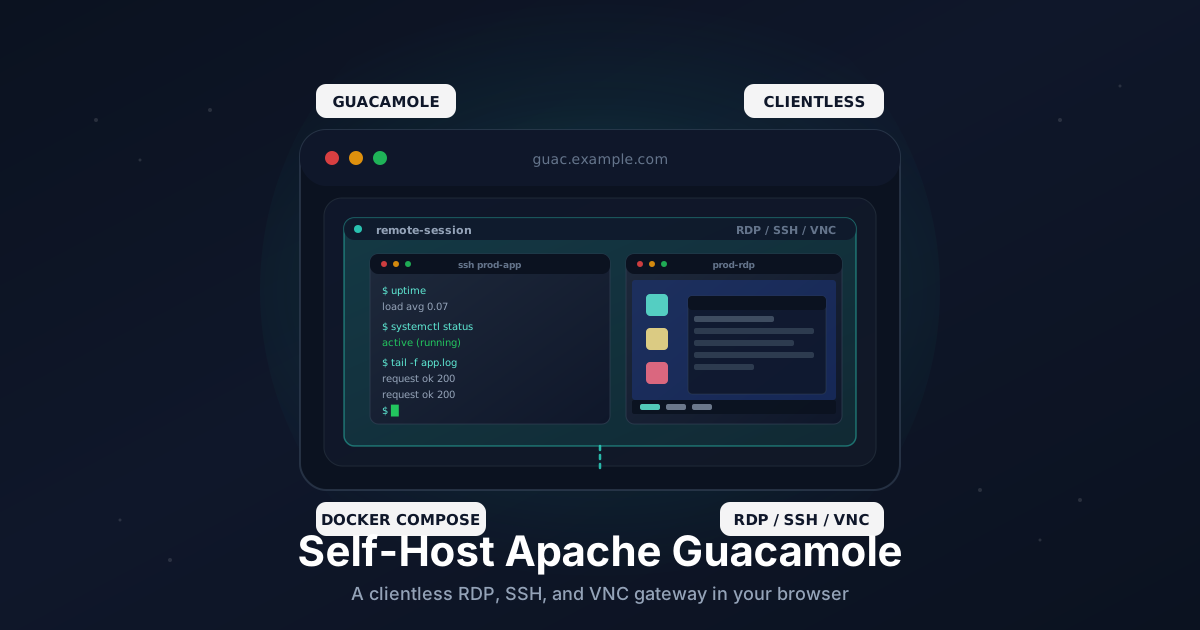
There's a class of moments where you really want to RDP into a server but the only thing you have at hand is a Chromebook, a locked-down work laptop, or a phone. Installing a native client isn't an option. That's exactly the gap Apache Guacamole fills. It's a clientless gateway that turns RDP, SSH, VNC, and Telnet into something you can use from any modern browser.
You drop it on a VPS, point your browser at guac.example.com, log in, and click a saved connection. The server does the protocol work and streams the session to your browser as HTML5. No client install, no native plugin, no port forwards from the device you're on - just a tab.
This tutorial walks through a production-ready install: Docker Compose, the official guacd and guacamole images, PostgreSQL for users and saved connections, and Caddy in front for automatic HTTPS.
TL;DR
- Spin up a VPS and install Docker
- Point a subdomain like
guac.example.comat the server - Run
guacd,guacamole, andpostgreswith one compose file - Initialize the Postgres schema from the Guacamole image
- Put Caddy in front for HTTPS
- Log in, change the admin password, add your first connection
- Restrict access with a VPN or IP allowlist
Total time: about 20 minutes.
What You Need
- A VPS with at least 1 GB RAM (2 GB is more comfortable) running Ubuntu 22.04 or 24.04
- A domain you can add DNS records to
- Ports
80and443open to the internet for Let's Encrypt - Network reachability from the VPS to whatever you want to RDP, SSH, or VNC into
The VPS does not need a desktop environment. It's a gateway: it talks RDP/SSH out, and HTTPS in.
How Guacamole Hangs Together
Three moving parts worth knowing about before you start:
- guacd - the C daemon that speaks RDP, SSH, VNC, Telnet, and Kubernetes. It's the thing that opens the actual protocol session.
- guacamole - a Java web application (the
guacamole/guacamoleimage bundles Tomcat) that serves the browser UI and proxies traffic toguacd. - A database - Postgres or MySQL. Stores users, groups, saved connections, and connection history. The H2 in-memory default is fine for a five-minute demo and nothing else.
Browser talks HTTPS to Caddy, Caddy talks HTTP to the Guacamole web app, the web app talks the Guacamole protocol to guacd, and guacd talks RDP/SSH/VNC out to your target hosts.
Step 1: Point a Subdomain at the VPS
In your DNS provider, add an A record:
guac.example.com → YOUR_VPS_IPV4
Add an AAAA record for IPv6 if you have one. Verify:
dig +short guac.example.com
The output should match the VPS IP. DNS needs to resolve before Caddy can fetch a certificate.
Step 2: Install Docker and Docker Compose
On a fresh Ubuntu box:
sudo apt update
sudo apt install -y ca-certificates curl

sudo install -m 0755 -d /etc/apt/keyrings
sudo curl -fsSL https://download.docker.com/linux/ubuntu/gpg \
  -o /etc/apt/keyrings/docker.asc
sudo chmod a+r /etc/apt/keyrings/docker.asc

echo "deb [arch=$(dpkg --print-architecture) signed-by=/etc/apt/keyrings/docker.asc] \
  https://download.docker.com/linux/ubuntu $(. /etc/os-release && echo $VERSION_CODENAME) stable" | \
  sudo tee /etc/apt/sources.list.d/docker.list > /dev/null

sudo apt update
sudo apt install -y docker-ce docker-ce-cli containerd.io docker-buildx-plugin docker-compose-plugin
Confirm:
docker --version
docker compose version
Step 3: Open the Firewall
If you use UFW:
sudo ufw allow 22/tcp
sudo ufw allow 80/tcp
sudo ufw allow 443/tcp
sudo ufw enable
Caddy needs 80 for the ACME HTTP challenge and 443 for HTTPS. Nothing else needs to be public - guacd and Postgres stay on the internal Docker network.
Step 4: Create the Project Directory
sudo mkdir -p /opt/guacamole
cd /opt/guacamole
sudo mkdir -p init postgres-data caddy-data caddy-config
The layout:
init/- the Postgres schema we'll generate in the next steppostgres-data/- the live databasecaddy-data/andcaddy-config/- Caddy's certificate and config state
Step 5: Generate the Postgres Schema
The Guacamole image ships a SQL script that creates every table the JDBC auth extension expects. You only need to run this once, before Postgres starts for the first time.
sudo docker run --rm guacamole/guacamole:1.5.5 \
  /opt/guacamole/bin/initdb.sh --postgresql > initdb.sql
sudo mv initdb.sql init/initdb.sql
Postgres's official image runs every .sql file under /docker-entrypoint-initdb.d/ on first start. Mounting init/ to that path is what we'll do in the compose file.
Step 6: Set Strong Passwords
Generate two random passwords now and keep them to hand:
openssl rand -base64 24    # use this for POSTGRES_PASSWORD
openssl rand -base64 24    # spare, for the Guacamole admin user later
Don't reuse the Postgres password for anything else. It only matters to the containers.
Step 7: Write the Compose File
Create /opt/guacamole/docker-compose.yml:
services:
  postgres:
    image: postgres:15
    container_name: guac-postgres
    restart: unless-stopped
    environment:
      POSTGRES_DB: guacamole_db
      POSTGRES_USER: guacamole_user
      POSTGRES_PASSWORD: "REPLACE_WITH_POSTGRES_PASSWORD"
    volumes:
      - ./postgres-data:/var/lib/postgresql/data
      - ./init:/docker-entrypoint-initdb.d:ro
    networks:
      - guacnet

  guacd:
    image: guacamole/guacd:1.5.5
    container_name: guacd
    restart: unless-stopped
    networks:
      - guacnet

  guacamole:
    image: guacamole/guacamole:1.5.5
    container_name: guacamole
    restart: unless-stopped
    depends_on:
      - guacd
      - postgres
    environment:
      GUACD_HOSTNAME: guacd
      POSTGRES_HOSTNAME: postgres
      POSTGRES_DATABASE: guacamole_db
      POSTGRES_USER: guacamole_user
      POSTGRES_PASSWORD: "REPLACE_WITH_POSTGRES_PASSWORD"
      WEBAPP_CONTEXT: ROOT
    networks:
      - guacnet

  caddy:
    image: caddy:2
    container_name: caddy
    restart: unless-stopped
    ports:
      - "80:80"
      - "443:443"
    volumes:
      - ./Caddyfile:/etc/caddy/Caddyfile:ro
      - ./caddy-data:/data
      - ./caddy-config:/config
    networks:
      - guacnet

networks:
  guacnet:
A few notes:
WEBAPP_CONTEXT: ROOTmakes Guacamole serve at/instead of/guacamole/. Cleaner URLs and one less redirect.- Pin
1.5.5(or whatever the current stable is when you read this). Thelatesttag breaks across major versions because the JDBC schema changes. - Don't expose
5432or8080on the host. Caddy reaches the web app over the internalguacnetnetwork.
Step 8: Write the Caddyfile
Create /opt/guacamole/Caddyfile:
guac.example.com {
    encode zstd gzip

    reverse_proxy guacamole:8080 {
        header_up X-Forwarded-Proto https
    }
}
Caddy auto-renews Let's Encrypt certificates. No further config needed.
Step 9: Start the Stack
cd /opt/guacamole
sudo docker compose up -d
sudo docker compose logs -f
Watch the logs for two milestones:
- Postgres prints
database system is ready to accept connections. - Guacamole's Tomcat prints
Server startup in [N] milliseconds.
Then open https://guac.example.com in a browser. You should see the Guacamole login page, with a valid HTTPS certificate.
Step 10: Replace the Default Admin
Sign in with guacadmin / guacadmin. Immediately:
- Click the username in the top right and choose Settings, then Users.
- Click New User, create a fresh admin account with the second strong password you generated. Tick all permissions under System and Connections.
- Log out, log back in as the new admin.
- Go back to Users, open
guacadmin, and delete it.
Until you've done this, your gateway is one Shodan scan away from being someone's stepping stone.
Step 11: Add Your First Connection
A connection is the saved target for a session - hostname, port, protocol, optional username and password.
- Settings → Connections → New Connection.
- Pick a name like
prod-rdpand protocolRDP. - Under Parameters, set:
- Hostname: the target's reachable address from the VPS
- Port:
3389 - Username and password (or leave blank to be prompted each time)
- Security mode:
NLAfor modern Windows hosts - Ignore certificate: tick this if the target uses a self-signed cert
- Save.
Back on the home screen, the new connection appears under All Connections. Click it. The desktop opens in a new tab.
For SSH:
- Protocol
SSH, port22, set the username - Either paste a private key under Authentication or use a password
- Set Color scheme to
gray-blackif you prefer a dark terminal
For VNC: protocol VNC, port 5900, password if any.
Step 12: Restrict Access (Strongly Recommended)
A clientless RDP gateway on the open internet is a high-value target. Two clean ways to lock it down:
Behind a VPN. Install Tailscale on the VPS and on every device that needs access. Move Caddy off the public ports and only listen on the tailnet interface, or keep public listeners but add an IP allowlist for the tailnet range. See our Tailscale guide for the full setup.
IP allowlist with UFW. If you have static office and home IPs:
sudo ufw delete allow 80/tcp
sudo ufw delete allow 443/tcp
sudo ufw allow from 203.0.113.10 to any port 443 proto tcp
sudo ufw allow from 198.51.100.20 to any port 443 proto tcp
You'll still need port 80 open temporarily for ACME renewals, or switch Caddy to the DNS challenge.
Enforce 2FA inside Guacamole. The guacamole-auth-totp extension adds time-based one-time passwords:
cd /opt/guacamole
sudo mkdir -p extensions
sudo curl -L -o extensions/guacamole-auth-totp-1.5.5.jar \
  https://archive.apache.org/dist/guacamole/1.5.5/binary/guacamole-auth-totp-1.5.5.jar
Add a volume mount to the guacamole service:
volumes:
  - ./extensions:/etc/guacamole/extensions:ro
Restart the stack. Each user is prompted to enroll a TOTP secret on next login.
Step 13: Back Up Postgres
Everything that matters - users, groups, connections, history - lives in guacamole_db. The flat files do not.
Create /usr/local/bin/guacamole-backup.sh:
#!/usr/bin/env bash
set -euo pipefail

BACKUP_DIR="/var/backups/guacamole"
DATE="$(date +%F)"
mkdir -p "$BACKUP_DIR"

docker exec guac-postgres pg_dump -U guacamole_user guacamole_db | \
  gzip > "$BACKUP_DIR/guacamole-$DATE.sql.gz"

find "$BACKUP_DIR" -name "guacamole-*.sql.gz" -mtime +14 -delete
Make it executable and schedule it nightly:
sudo chmod +x /usr/local/bin/guacamole-backup.sh
echo "20 3 * * * root /usr/local/bin/guacamole-backup.sh" | \
  sudo tee /etc/cron.d/guacamole-backup
Sync the backup directory off-box to S3 or Backblaze B2 on the same schedule for off-site safety.
Upgrading
cd /opt/guacamole
sudo docker compose pull
sudo docker compose up -d
Across minor versions this is fine. Across major versions (e.g. 1.5.x to 1.6.x) the JDBC schema may change. Always:
- Read the upgrade notes for that version on the Apache Guacamole site.
- Take a Postgres dump first.
- Apply the matching
upgrade-pre-X.Y.Z.sqlscript from/opt/guacamole/postgresql/schema/upgrade/inside the new image.
If you skipped step 1 and the web app refuses to start with a schema mismatch, restore the dump, downgrade the images, and try again following the notes.
Troubleshooting
Login page loads but guacadmin fails. The Postgres init script never ran, so the user table is empty. Stop the stack, wipe postgres-data/ (only if it's the first install), make sure init/initdb.sql exists, and bring it back up.
502 Bad Gateway from Caddy. The web app isn't listening yet, or WEBAPP_CONTEXT doesn't match what Caddy is hitting. Check docker compose logs guacamole for the Tomcat startup line.
Connection refused when launching an RDP session. guacd can't reach the target. Test from inside the container: docker exec -it guacd nc -vz TARGET_IP 3389.
Black screen after RDP login. Almost always the wrong Security mode. Modern Windows wants NLA; older Windows or Linux RDP servers want RDP or Any.
Browser shows valid TLS but the address bar warns about mixed content. WEBAPP_CONTEXT and Caddy's X-Forwarded-Proto header have to agree. The Caddyfile above already sends the header - if you customized it, make sure it's still there.
Going Further
- Active Directory or LDAP login. The
guacamole-auth-ldapextension binds Guacamole to your existing directory. Drop the JAR inextensions/, set the LDAP env vars, and remove local users. - Recording sessions.
guacdcan record every session as a.guacfile. Useful for audit trails - mount a volume and turn on therecording-pathparameter on each connection. - Quick connections without a database. If you just need a one-off gateway, skip Postgres entirely and use a static
user-mapping.xmlfile. Less flexible, simpler. - Pair with a hardened Windows target. A self-hosted Guacamole gateway is only as safe as the boxes behind it. Walk your Windows hosts through our RDP hardening checklist before you expose them.
A clientless gateway on a small VPS gives you the convenience of a remote-desktop-as-a-service product without the per-seat fees, and without storing your sessions on someone else's servers.
Need a VPS to host a Guacamole gateway? Our Linux plans include fast IPv4, IPv6, and a global network of locations close to your users. See the options.