Self-Host Karakeep on a VPS with Docker and Caddy
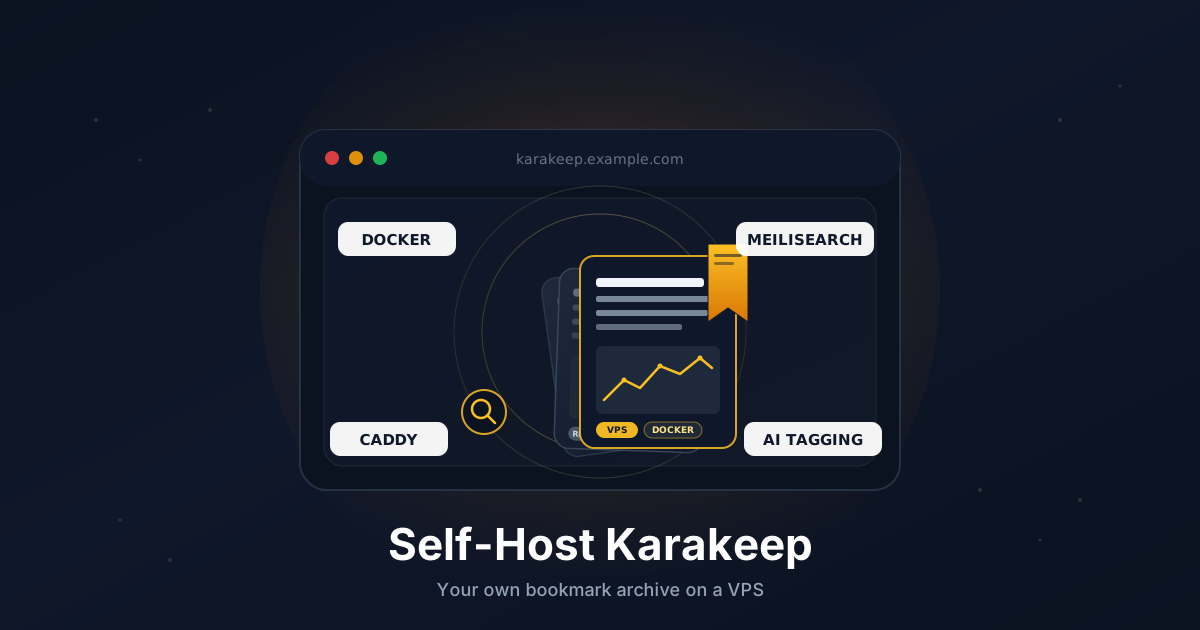
If you save a lot of links - articles, recipes, papers, half-finished tutorials - you've probably noticed that public services keep getting bought, shut down, or paywalled. Pinboard fades, Pocket sells out, Raindrop changes terms. The links you actually wanted to come back to vanish or get harder to reach.
Karakeep (formerly Hoarder) is the obvious answer: a self-hosted bookmark and read-later app that grabs the page, stores a clean text snapshot, indexes it for full-text search, and optionally tags it with AI. There are official iOS, Android, and browser extensions, plus a Chrome-rendered preview so the page survives even if the original goes 404.
This tutorial walks through a clean install on a VPS: Docker Compose, Meilisearch for search, headless Chrome for crawling, Caddy for automatic HTTPS, and a couple of optional bits like AI tagging and OIDC.
TL;DR
- Install Docker and Docker Compose on a fresh VPS
- Point a subdomain like
karakeep.example.comat your server - Generate two secrets and drop them in a
.envfile - Run Karakeep, Meilisearch, headless Chrome, and Caddy from one
docker-compose.yml - Sign up for the first account, then disable open registration
- Install the browser extension and mobile app, point them at your domain
- Back up the
datavolume nightly
Total time: about 20 minutes.
What You Need
- A VPS with at least 2 GB RAM (4 GB is more comfortable - Chrome is hungry) running Ubuntu 22.04 or 24.04
- A domain you can add DNS records to
- Ports
80and443open to the internet (Let's Encrypt) - Root or sudo access
Karakeep itself idles around 200 MB. The bulk of memory and CPU comes from the Chrome container that renders pages when you bookmark them.
If you don't have a server yet, any small Linux plan with NVMe storage will do. Search indexes are I/O-sensitive, so spinning rust is not your friend here.
Step 1: Point a Subdomain at Your VPS
In your DNS provider, create an A record:
karakeep.example.com → YOUR_VPS_IPV4
Add an AAAA record if you use IPv6. Verify it resolves:
dig +short karakeep.example.com
The output should match your VPS IP. DNS needs to be live before Caddy can issue a certificate.
Step 2: Install Docker and Docker Compose
On a fresh Ubuntu box:
sudo apt update
sudo apt install -y ca-certificates curl

sudo install -m 0755 -d /etc/apt/keyrings
sudo curl -fsSL https://download.docker.com/linux/ubuntu/gpg \
  -o /etc/apt/keyrings/docker.asc
sudo chmod a+r /etc/apt/keyrings/docker.asc

echo "deb [arch=$(dpkg --print-architecture) signed-by=/etc/apt/keyrings/docker.asc] \
  https://download.docker.com/linux/ubuntu $(. /etc/os-release && echo $VERSION_CODENAME) stable" | \
  sudo tee /etc/apt/sources.list.d/docker.list > /dev/null

sudo apt update
sudo apt install -y docker-ce docker-ce-cli containerd.io docker-buildx-plugin docker-compose-plugin
Verify:
docker --version
docker compose version
Step 3: Open the Firewall
If you use UFW:
sudo ufw allow 22/tcp
sudo ufw allow 80/tcp
sudo ufw allow 443/tcp
sudo ufw enable
Caddy needs 80 for the ACME HTTP challenge and 443 for HTTPS.
Step 4: Create the Project Directory
sudo mkdir -p /opt/karakeep
cd /opt/karakeep
sudo mkdir -p data meili-data caddy-data caddy-config
Everything that matters lives under /opt/karakeep. That's the path you'll back up.
Step 5: Generate Secrets
You need two random strings: one for NextAuth session signing and one for the Meilisearch master key.
openssl rand -base64 36
openssl rand -base64 36
Save both somewhere safe (your password manager). You'll paste them into the .env file in the next step.
Step 6: Write the .env File
Create /opt/karakeep/.env:
KARAKEEP_VERSION=release

NEXTAUTH_URL=https://karakeep.example.com
NEXTAUTH_SECRET=PASTE_FIRST_SECRET_HERE
MEILI_MASTER_KEY=PASTE_SECOND_SECRET_HERE

# Allow signups for the first user, then flip this off
DISABLE_SIGNUPS=false

# Where data lives inside the karakeep container
DATA_DIR=/data
Tighten permissions so passers-by on the box can't read it:
sudo chmod 600 /opt/karakeep/.env
Step 7: Write the Compose File
Create /opt/karakeep/docker-compose.yml:
services:
  karakeep:
    image: ghcr.io/karakeep-app/karakeep:${KARAKEEP_VERSION:-release}
    container_name: karakeep
    restart: unless-stopped
    env_file:
      - .env
    environment:
      MEILI_ADDR: http://meilisearch:7700
      BROWSER_WEB_URL: http://chrome:9222
      DATA_DIR: /data
    volumes:
      - ./data:/data
    networks:
      - karanet
    depends_on:
      - meilisearch
      - chrome

  chrome:
    image: gcr.io/zenika-hub/alpine-chrome:123
    container_name: karakeep-chrome
    restart: unless-stopped
    command:
      - --no-sandbox
      - --disable-gpu
      - --disable-dev-shm-usage
      - --remote-debugging-address=0.0.0.0
      - --remote-debugging-port=9222
      - --hide-scrollbars
    networks:
      - karanet

  meilisearch:
    image: getmeili/meilisearch:v1.13.3
    container_name: karakeep-meili
    restart: unless-stopped
    env_file:
      - .env
    environment:
      MEILI_NO_ANALYTICS: "true"
    volumes:
      - ./meili-data:/meili_data
    networks:
      - karanet

  caddy:
    image: caddy:2
    container_name: karakeep-caddy
    restart: unless-stopped
    ports:
      - "80:80"
      - "443:443"
    volumes:
      - ./Caddyfile:/etc/caddy/Caddyfile:ro
      - ./caddy-data:/data
      - ./caddy-config:/config
    networks:
      - karanet
    depends_on:
      - karakeep

networks:
  karanet:
A few things worth pointing out:
- The Karakeep web app listens on port
3000inside the container. We don't expose it on the host - Caddy reaches it over the internal Docker network. - Meilisearch and Chrome are not exposed either, which is exactly what you want. Treat them as internal-only.
- Pin the Meilisearch tag. Major versions sometimes change the index format and you don't want a surprise reindex from a
:latestupgrade.
Step 8: Write the Caddyfile
Create /opt/karakeep/Caddyfile:
karakeep.example.com {
    encode zstd gzip

    # Karakeep handles its own routing; the web app is on :3000
    reverse_proxy karakeep:3000

    # Larger uploads (PDFs, screenshots) than the default
    request_body {
        max_size 50MB
    }
}
Caddy will request a Let's Encrypt cert on first boot. No further config required.
Step 9: Start the Stack
cd /opt/karakeep
sudo docker compose up -d
sudo docker compose logs -f
The first start takes a minute - Karakeep runs migrations, Meilisearch initializes, Caddy fetches the certificate. Once you see Caddy log certificate obtained successfully, open https://karakeep.example.com in a browser.
You should land on the Karakeep sign-in page. Click Sign Up and create your account. The first account becomes the admin.
Step 10: Lock Down Signups
Now that you have your account, close the door behind you. Edit /opt/karakeep/.env:
DISABLE_SIGNUPS=true
Restart the web container:
sudo docker compose up -d karakeep
To add family or teammates later, use the admin user-management UI instead of reopening signups.
Step 11: Save Your First Bookmarks
In the web UI, paste a URL into the top bar and press enter. Karakeep will queue three jobs in the background:
- Fetch the HTML and extract the readable article (Mozilla Readability under the hood).
- Spin up a Chrome session via the headless container and store a screenshot plus a clean PDF.
- Push the text into Meilisearch for full-text search.
Refresh after a few seconds and the card fills in with the title, description, and a thumbnail. If something looks off, check docker compose logs karakeep - the worker logs are right there.
Step 12: Install the Browser Extension and Mobile App
The web UI alone is fine, but the magic is in the clients.
Browser: Karakeep has official extensions for Chrome, Firefox, and Safari. Install from the extensions page, then in the extension settings:
- Server URL:
https://karakeep.example.com - API key: generate one under Settings → API Keys in the web UI
You'll get a one-click "save this page" button next to the address bar.
Mobile: install Karakeep for iOS or the Android app from F-Droid / Play Store. Same drill: server URL plus API key. The iOS app registers as a Share Sheet target, which is the actual reason people switch to it from Safari Reading List.
Step 13: Optional - Add AI Tagging
Karakeep can auto-tag bookmarks based on content. You have two paths:
OpenAI-compatible API (easiest, costs cents per 1000 bookmarks). Add to .env:
OPENAI_API_KEY=sk-...
INFERENCE_TEXT_MODEL=gpt-4o-mini
INFERENCE_IMAGE_MODEL=gpt-4o-mini
Local with Ollama (free, private, slower). Run Ollama on the host, then point Karakeep at it:
OLLAMA_BASE_URL=http://host.docker.internal:11434
INFERENCE_TEXT_MODEL=llama3.1:8b
You'll need extra_hosts: ["host.docker.internal:host-gateway"] on the karakeep service for that to resolve. Restart with docker compose up -d karakeep.
Existing bookmarks won't retag themselves automatically. Trigger a reindex from Settings → Tags when you're happy with the model.
Step 14: Automate Backups
The full state of Karakeep lives in two directories:
/opt/karakeep/data- SQLite database, uploaded assets, screenshots/opt/karakeep/meili-data- search index (rebuildable, but slow on big libraries)
The simplest reliable backup is a nightly tarball.
Create /usr/local/bin/karakeep-backup.sh:
#!/usr/bin/env bash
set -euo pipefail

BACKUP_DIR="/var/backups/karakeep"
DATE="$(date +%F)"
mkdir -p "$BACKUP_DIR"

# SQLite hot-copy
docker exec karakeep sh -c \
  "sqlite3 /data/db.db \".backup '/data/db.backup'\""

tar -czf "$BACKUP_DIR/karakeep-$DATE.tar.gz" \
  -C /opt/karakeep data meili-data

find "$BACKUP_DIR" -name "karakeep-*.tar.gz" -mtime +14 -delete
Make it executable and schedule it:
sudo chmod +x /usr/local/bin/karakeep-backup.sh
echo "30 3 * * * root /usr/local/bin/karakeep-backup.sh" | \
  sudo tee /etc/cron.d/karakeep-backup
For off-site safety, ship the same directory to S3-compatible storage. We have a separate guide on that: Encrypted VPS Backups to S3 with Restic.
Step 15: Updating Karakeep
Karakeep ships frequent releases. To upgrade:
cd /opt/karakeep
sudo docker compose pull
sudo docker compose up -d
Migrations run automatically on container start. Pin to a specific version in .env (KARAKEEP_VERSION=0.27.0) instead of release if you prefer to upgrade on your own schedule. Always run the backup script first.
Troubleshooting
Bookmarks save but the screenshot/PDF is blank. The headless Chrome container is OOM-killing itself. Bump VPS RAM to 4 GB or add mem_limit: 1g and --disable-dev-shm-usage (already there) plus a tmpfs: /dev/shm entry. Check docker compose logs chrome.
Caddy never gets a certificate. DNS hasn't propagated, or ports 80/443 are blocked at the provider firewall (not just UFW). dig +short karakeep.example.com from your laptop and curl -v http://karakeep.example.com/.well-known/acme-challenge/test will tell you which.
Search returns nothing. Meilisearch couldn't connect or the master key doesn't match. Check docker compose logs meilisearch - if you see Invalid token, the MEILI_MASTER_KEY in .env differs from what was used at first boot. Wipe meili-data and restart. The index will rebuild from the SQLite database within a few minutes.
Browser extension says "couldn't connect." Mixed-content or wrong scheme. The server URL in the extension must be https://... exactly, no trailing slash, and the cert must already be valid (not staging).
500 errors right after upgrade. The migration step probably failed. Roll back by setting KARAKEEP_VERSION to the previous tag, restarting, and opening a GitHub issue with the relevant log lines.
Going Further
- Put the whole thing behind a VPN. A bookmark service is mostly read-only - perfect for limiting to your tailnet. Pair this guide with our Tailscale on a VPS walkthrough and skip the public DNS record entirely.
- Add OIDC sign-in. Karakeep supports generic OIDC. Drop your
OIDC_*env vars in and you can sign in with Authentik, Keycloak, or your existing identity provider, and require it for new accounts. - Use a proper backup target. Restic to Backblaze B2 costs cents per month for tens of gigabytes of bookmarks and survives the VPS dying.
- Move the search index to RAM disk if you have a multi-GB library - Meilisearch is mmap-heavy and the difference is dramatic on cold starts.
That's the lot. A self-hosted bookmark archive that survives the next round of acquisitions and shutdowns, with a clean web UI, working mobile apps, and full-text search over everything you've ever saved.
Need a VPS that's ready for Docker workloads like this? Our Linux plans include fast NVMe storage and IPv6 out of the box. See the options.